Setup & Configuration
GST Count Down Timer
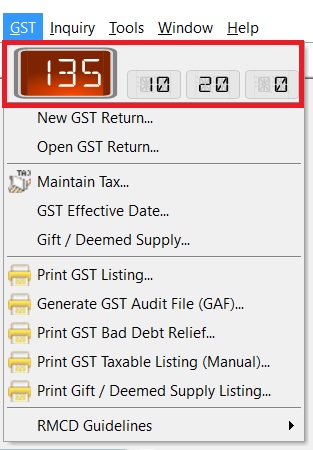
This is a countdown timer for the submission of the GST Return. It is generally displayed 7 days before the GST Return due date.
Example GST Count Down Timer:
Formula
Visible := (Return Due - Today Date - 1) < 7
Example
Frequently : Monthly
Next Submission : Nov 2016
Count Down begin shown : 24 Dec 2016
Today date : 27 Dec 2016
Count Down Shown : 3 Days+++
GST Effective Date
Register
Enable to set the GST start date (register) and end date (de-register).
-
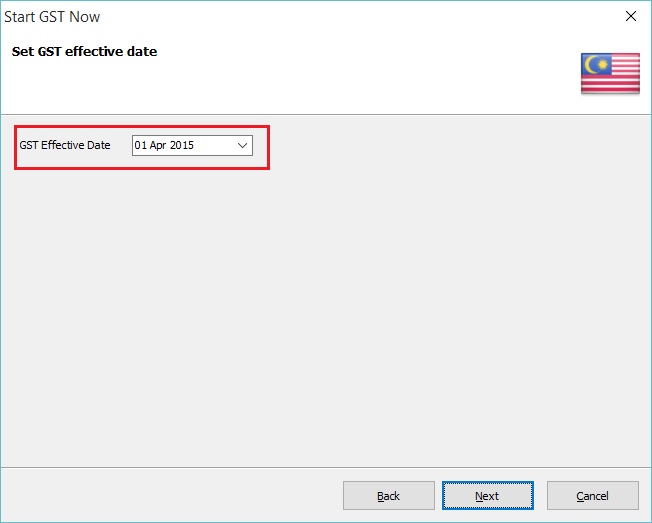
Below the screenshot is the Start GST wizard, you are required to set the GST Effective Date.
-
You can check the GST Effective Date under the menu GST | GST Effective Date...
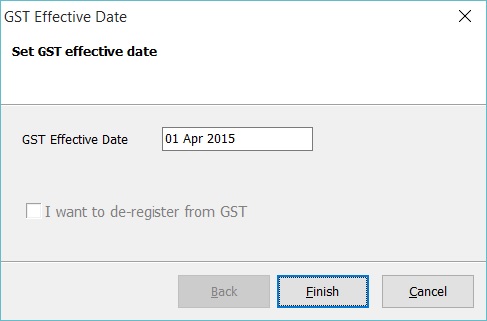
Field Name Field Type Explanation GST Effective Date Date GST start date. I want to de-register from GST Boolean To set de-register date from GST.
De-register
-
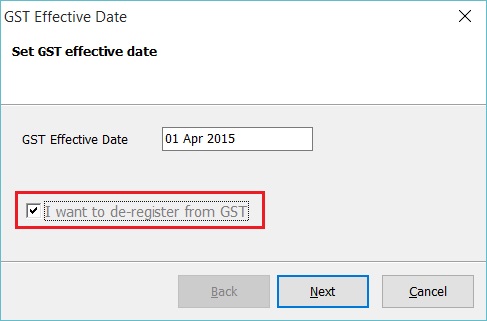
At the GST effective date screen, tick on I want to de-register from GST.
-
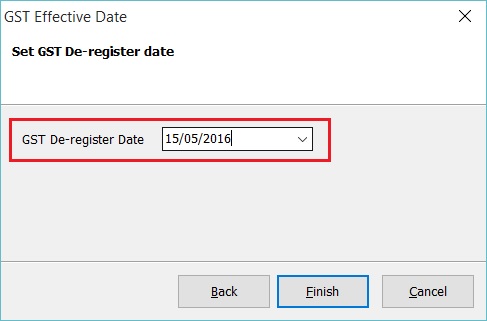
Next', type-in the de-register date. Let's assume ABC Sdn Bhd ceased to be a registered person on 15 May 2016.
-
Click Finish to confirm the de-register date.
-
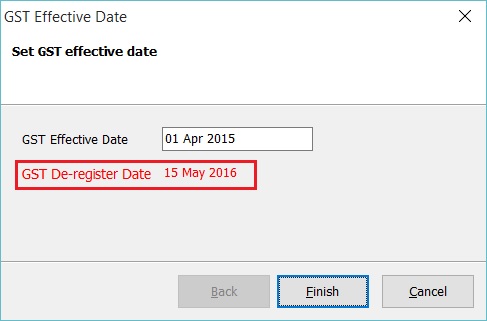
GST De-register Date : 15 May 2016 will displayed below the GST effective date. See the screenshot below.
-
Click Finish to exit.
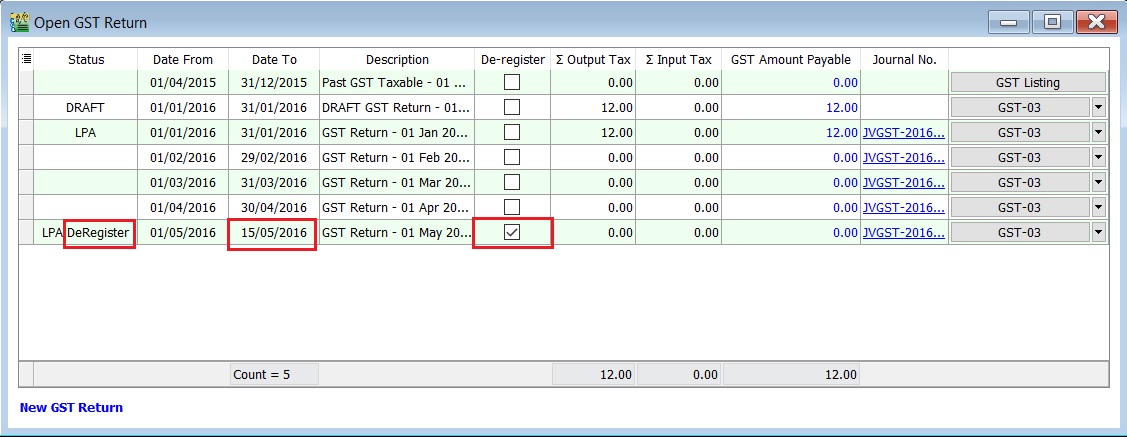
You can found the De-Register markings in the GST Returns. See the screenshot below.
Cancel De-Register
-
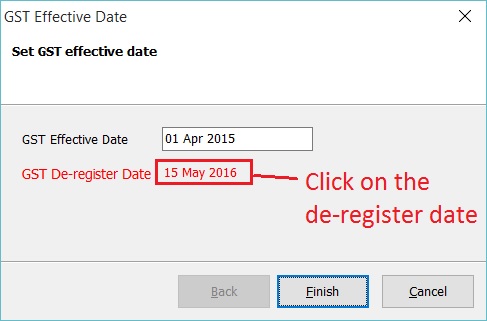
At the GST effective date screen, click on the De-Register Date.
-
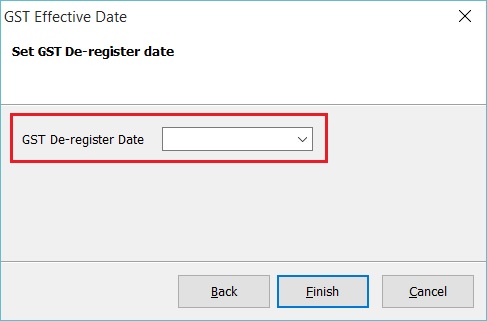
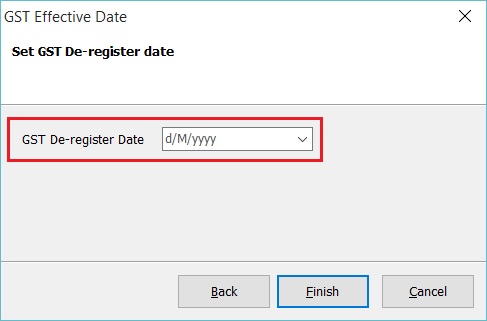
Leave the De-Register date blank or become d/M/yyyy. See the screenshot below.
-
Click Finish to confirm remove the de-register date.