Stocks
Overview
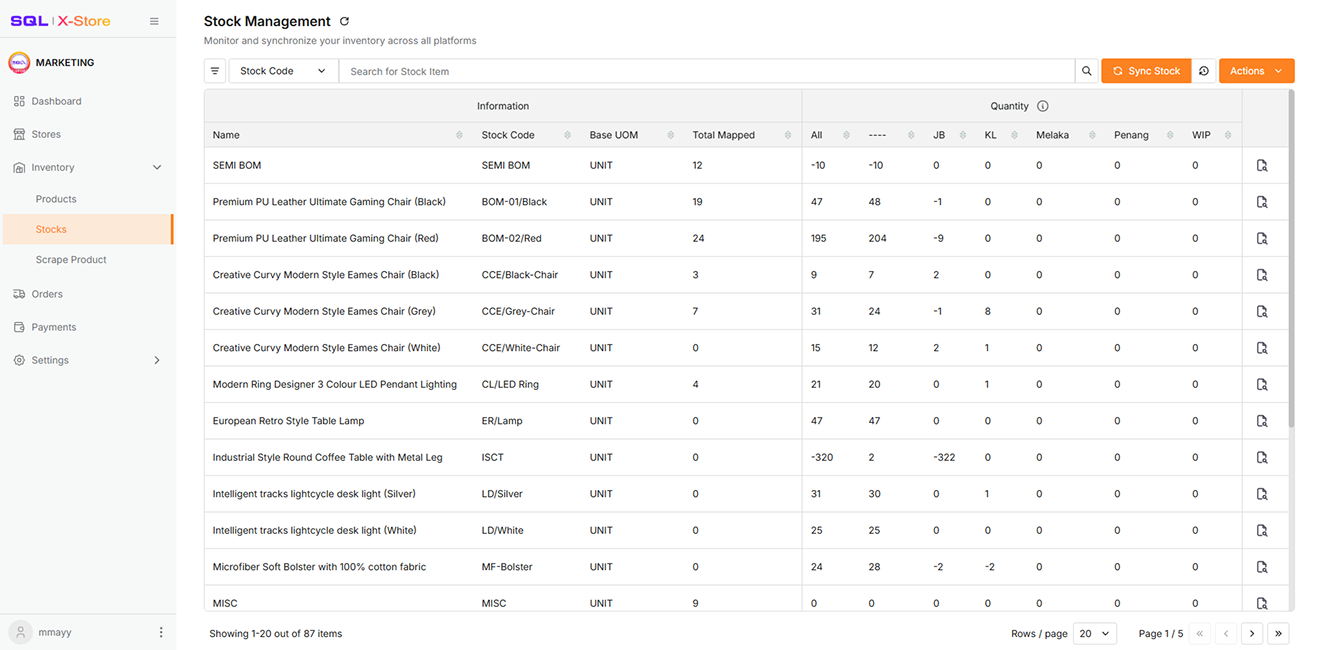
The Stocks module allows you to view and manage stock items synced from SQL Account.
For more information regarding Sync Stock Item, please refer to Setup
Map Products
Mapping platform products to stock items allows you to manage stock and quantity using the main stock item, improving stock quantity accuracy. There are two ways to map products:
Map Multiple Stock Items
-
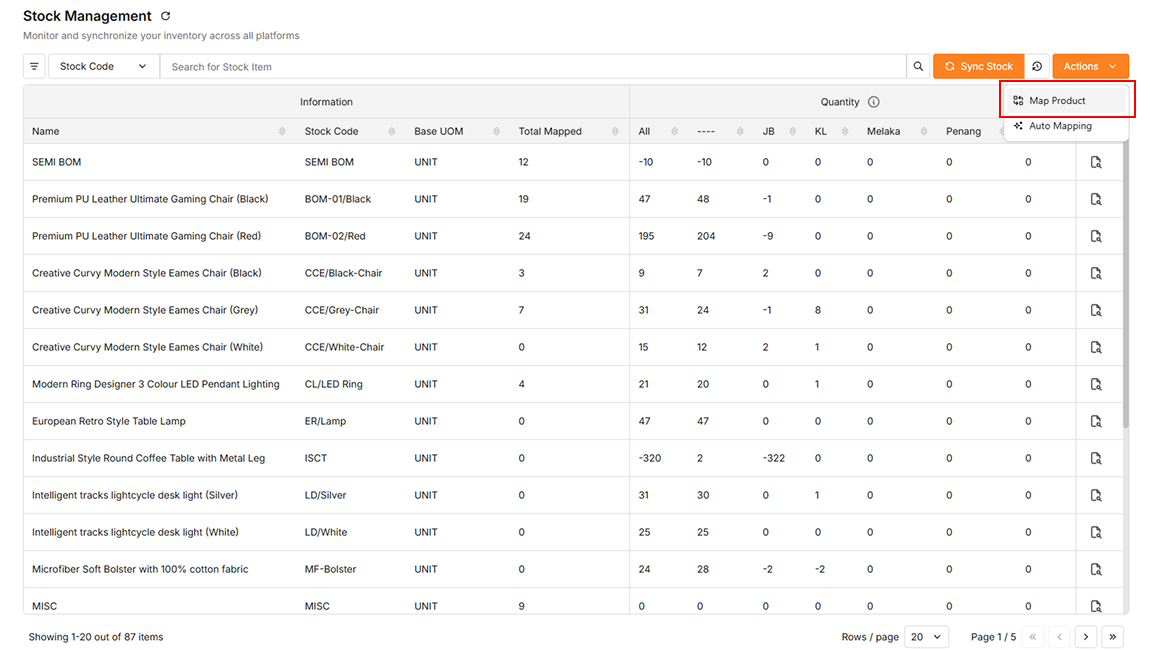
Go to Inventory > Stocks
-
Click the Map Product button under the Actions button
-
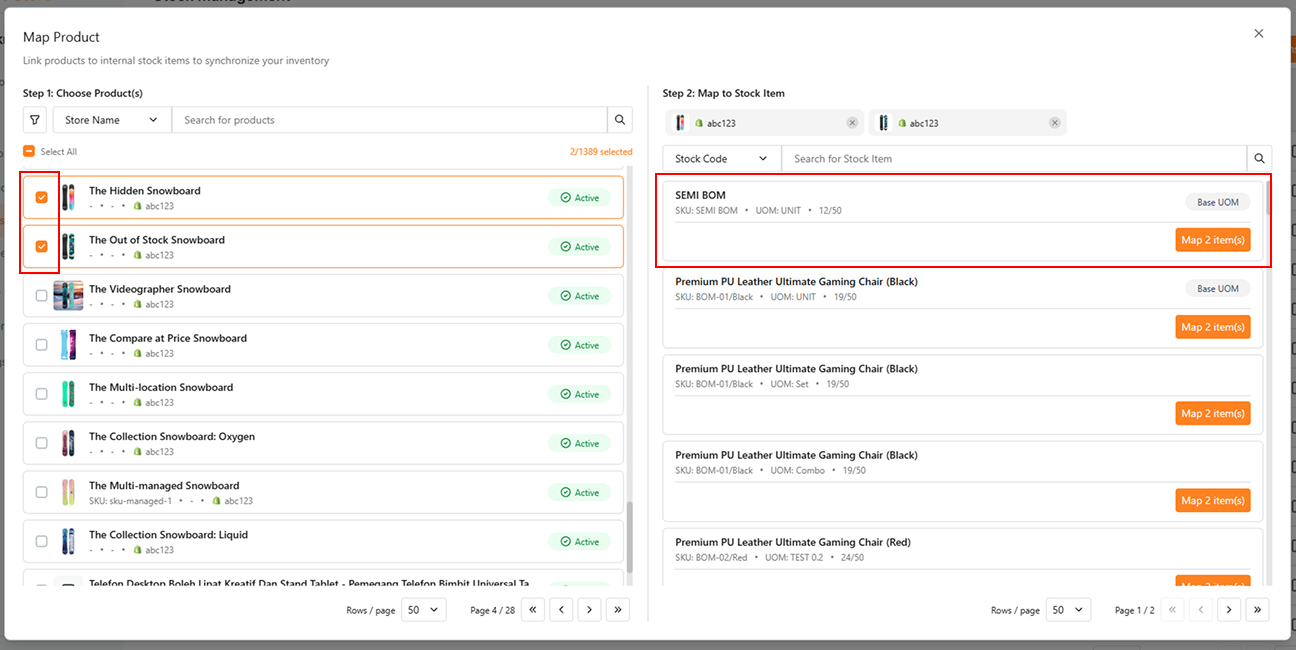
Select the Platform Products and then a Stock Item to map them together
 info
infoUse the Filter Button to narrow your Platform Products view, or use the Search Bar to find specific e-commerce products and stock items.
Map Single Stock Item
-
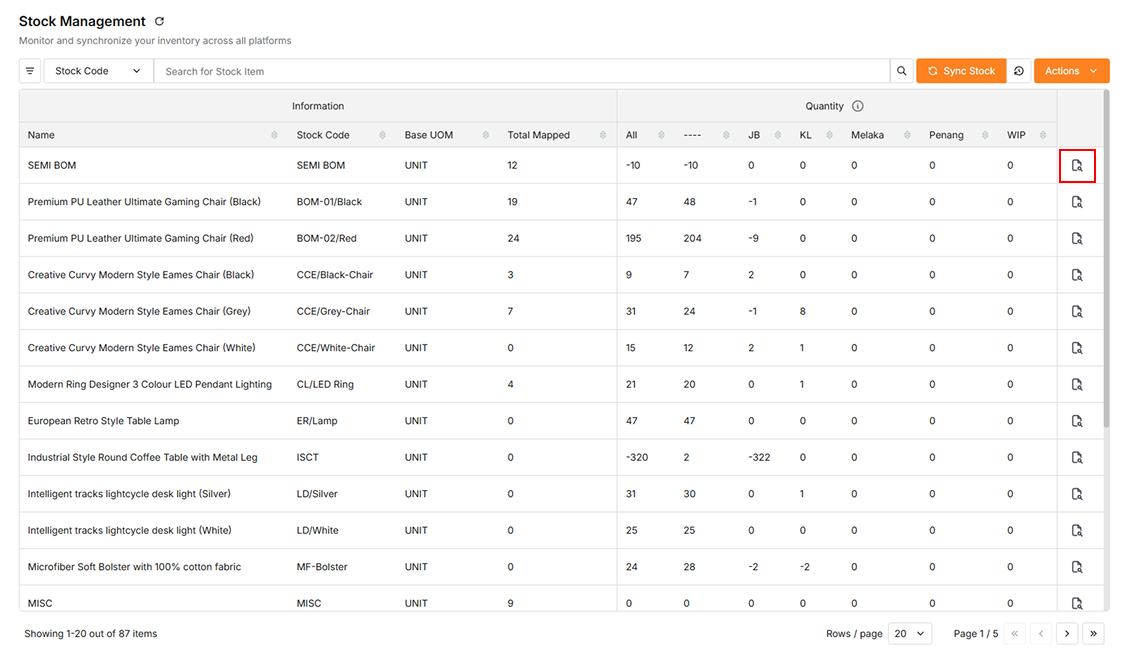
Go to Inventory > Stocks
-
Click the icon to view stock details
-
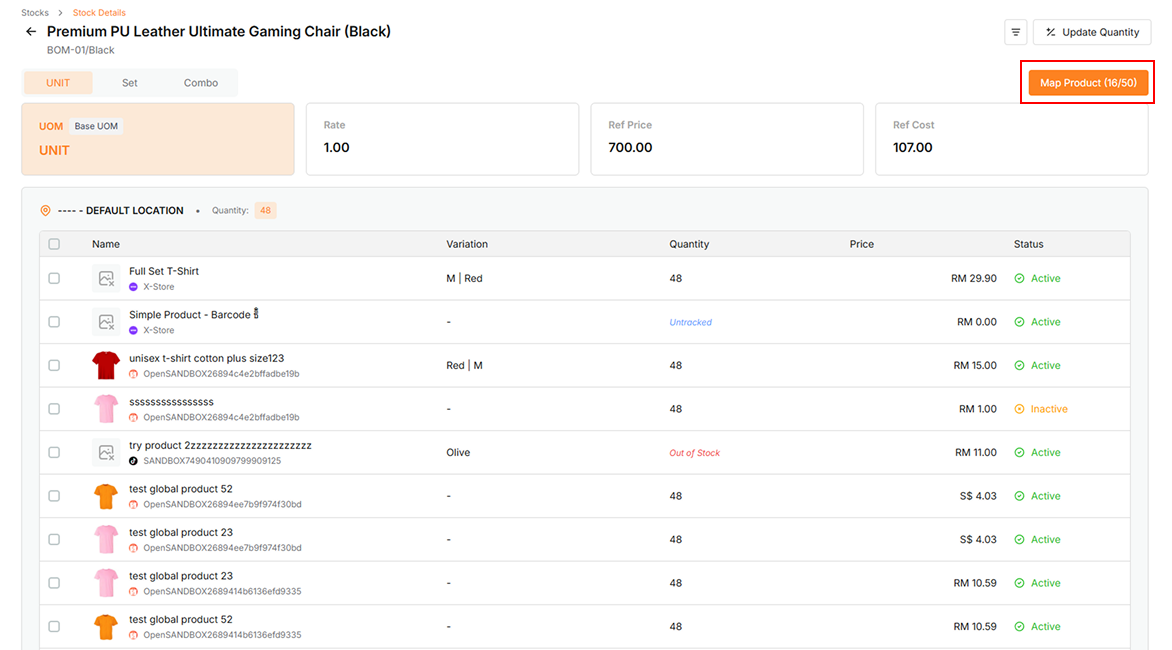
Click the Map Product button
-
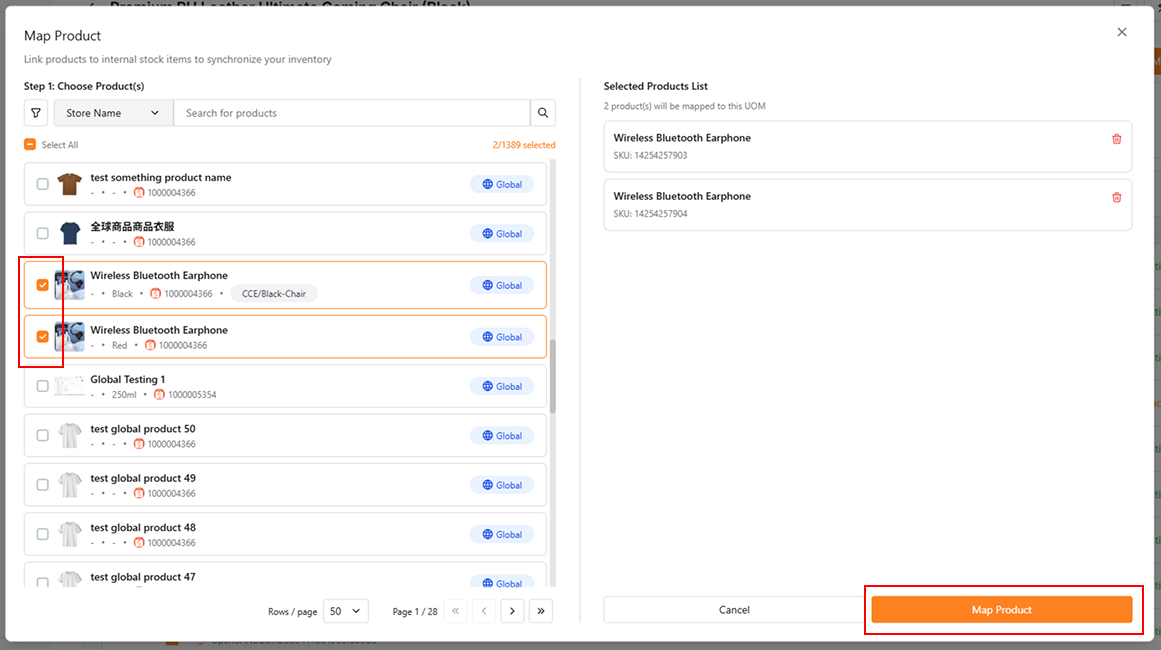
Select the Platform Products and click Map Product to map them directly to this Stock Item UOM
 info
infoEnsure your store is mapped to the correct stock item location, or mapped items will fall under Unknown Location. To map the location code, please refer to Setup
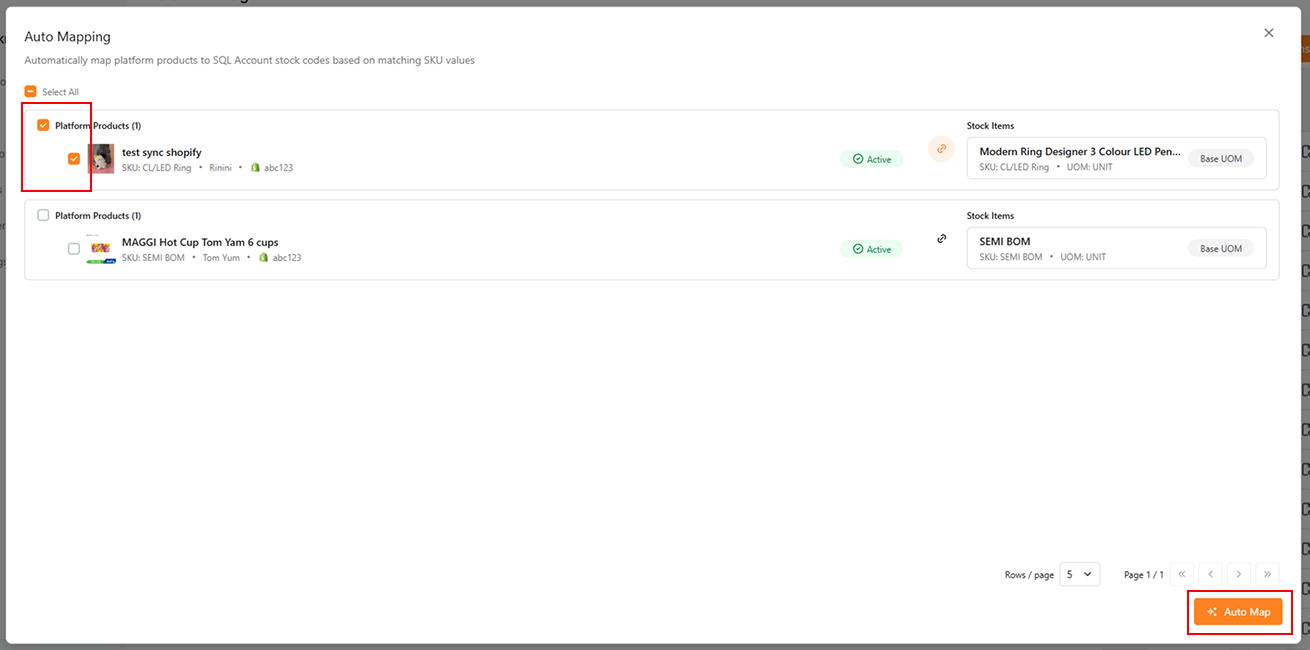
Automap Stock Item
-
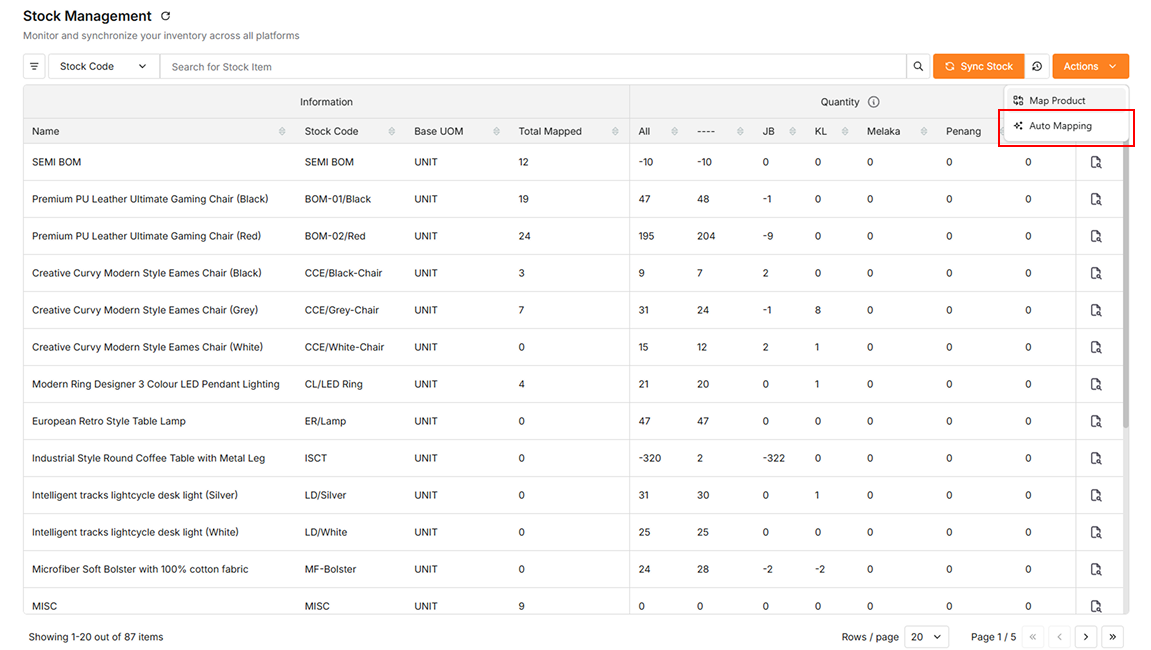
Go to Inventory > Stocks
-
Click the Auto Mapping button under the Actions button
-
Confirm the mapping is correct, select the platform products, then click the Auto Map button to map
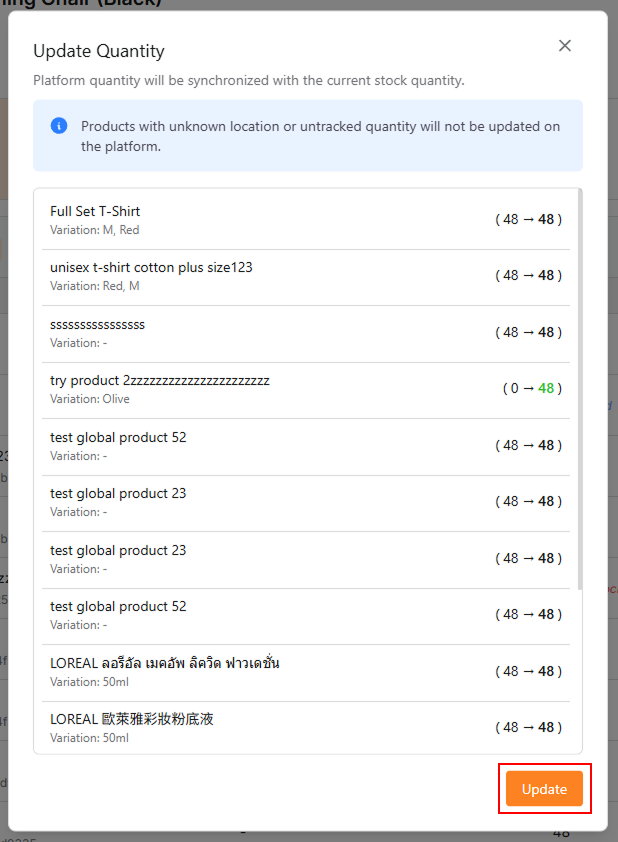
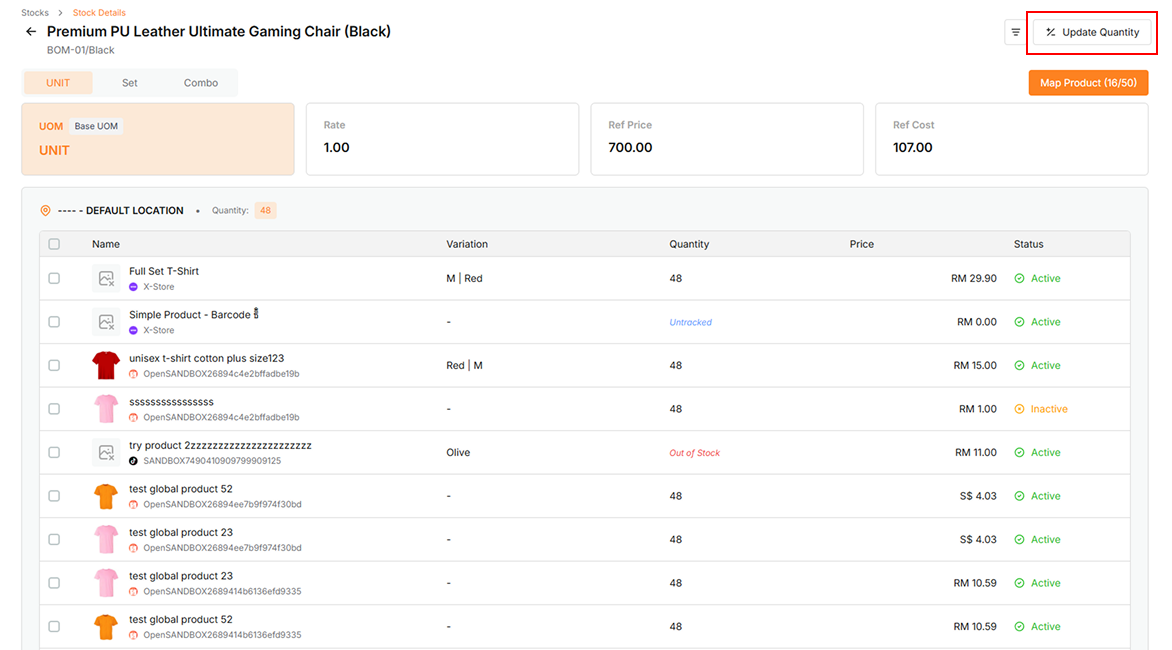
Update Quantity
-
Go to Inventory > Stocks
-
Click the icon to view stock details
-
Click the +/- icon
-
Click the Update button to update the mapped products' quantity with the stock item's quantity