Counter Management
The Counter Managament module allows you to view counter summaries, handle cash flows, close counters, and preview or print closed counter reports
General Features
Filter Counter by Date
-
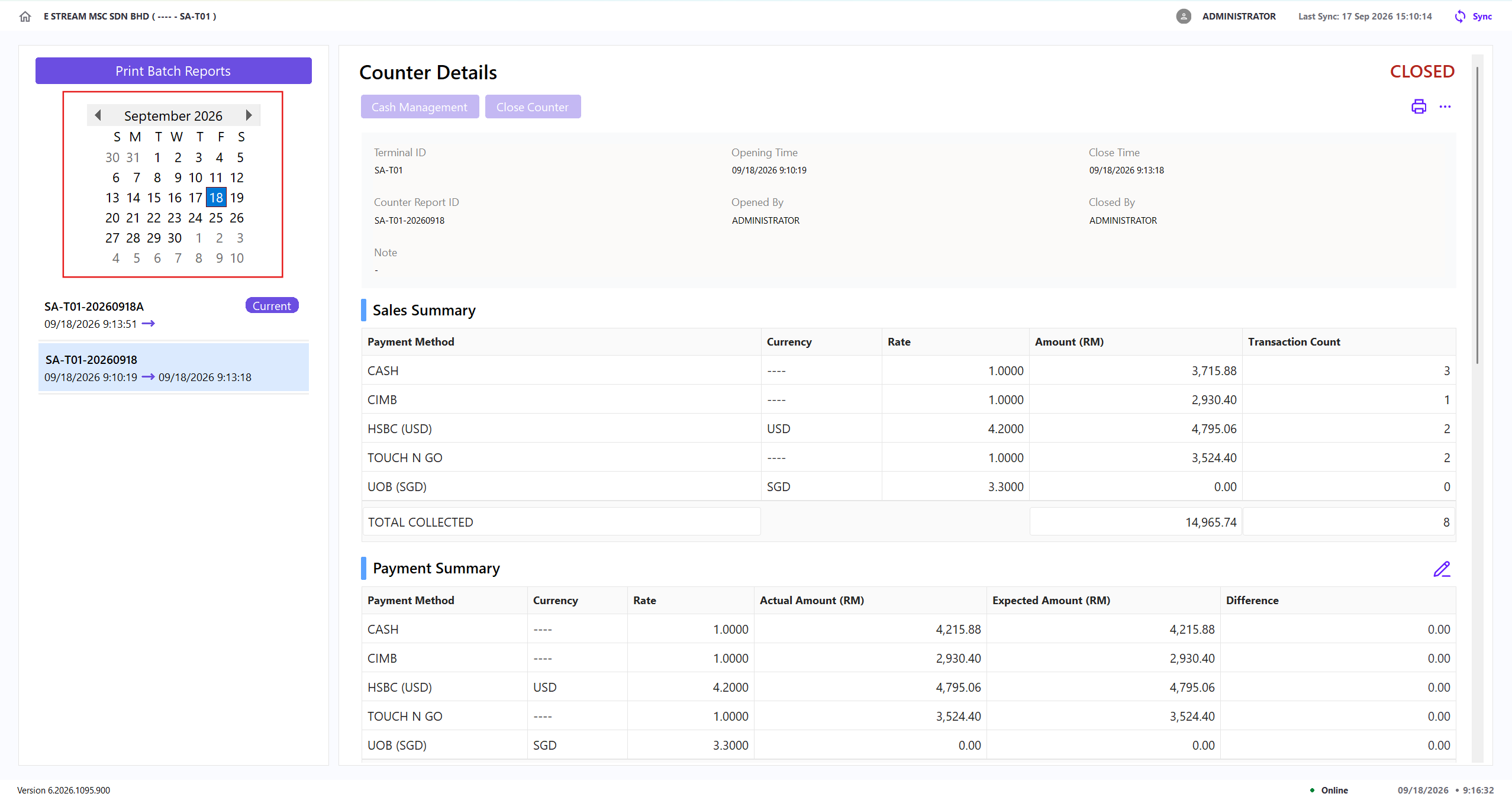
Use the calendar on the left panel to navigate between months using the ◀ and ▶ arrows
-
Select a date to show counters opened on that day
-
Select a counter in the list to view its full Counter Details on the right panel
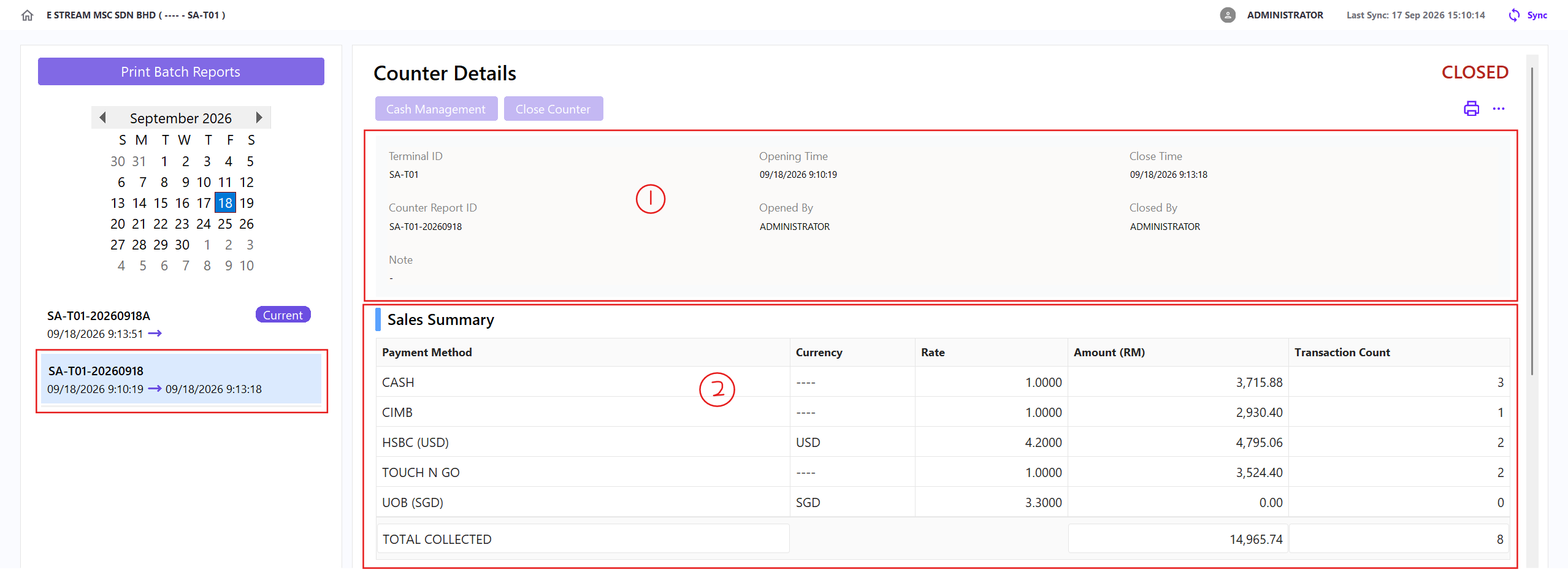
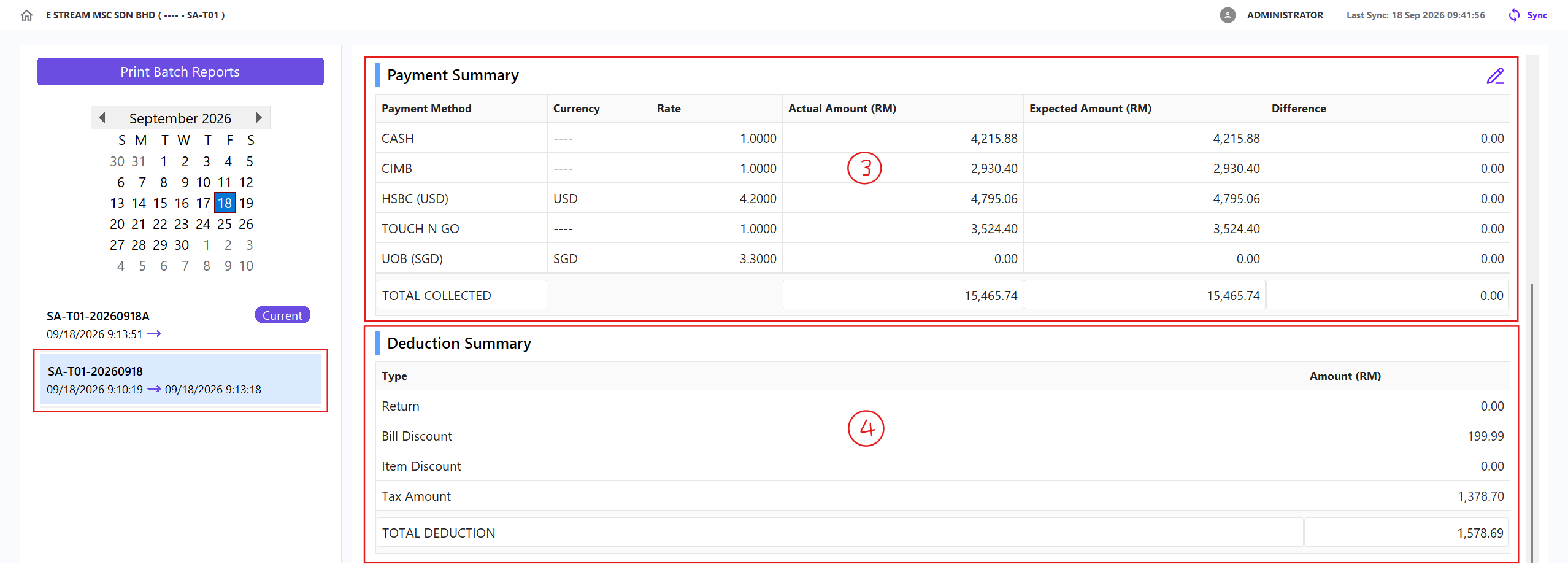
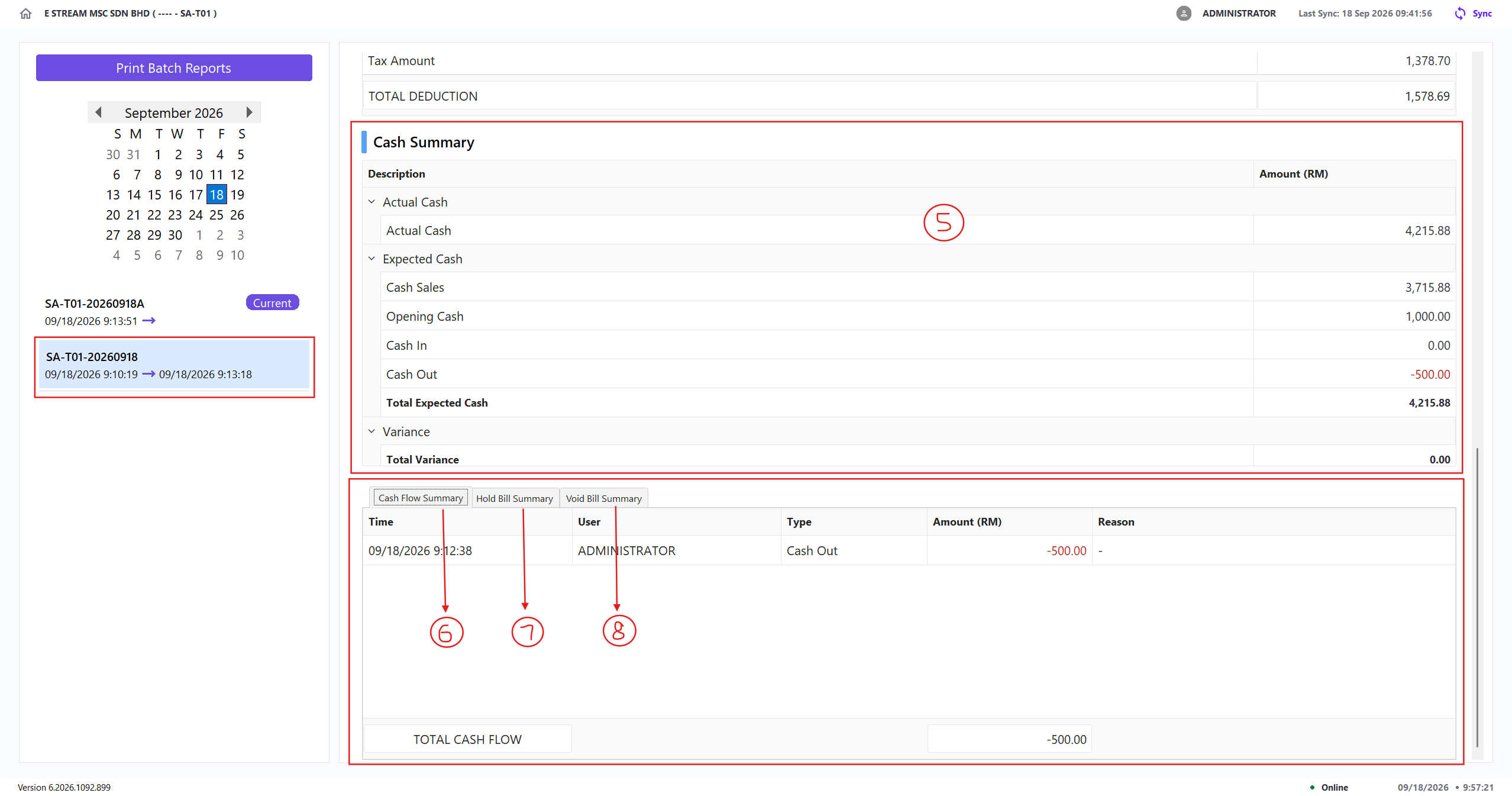
Section Information Available Counter Information Terminal ID, opening time, close time, counter report ID, opened by, closed by, and note Sales Summary Payment method, currency, rate, amount (RM), and transaction count Payment Summary Payment method, currency, rate, actual amount (RM), expected amount (RM), and difference (actual − expected) Deduction Summary Deduction type (return, bill discount, item discount, tax amount) Cash Summary Actual cash, cash sales, opening cash, cash in, cash out, total expected cash, and total variance Cash Flow Summary Time, user, type, amount (RM), and reason for each cash in/out transaction Hold Bill Summary Time, user, amount (RM), and remark for each held bill Void Bill Summary Time, user, amount (RM), and remark for each voided bill
Print Batch Reports
-
Click Print Batch Reports
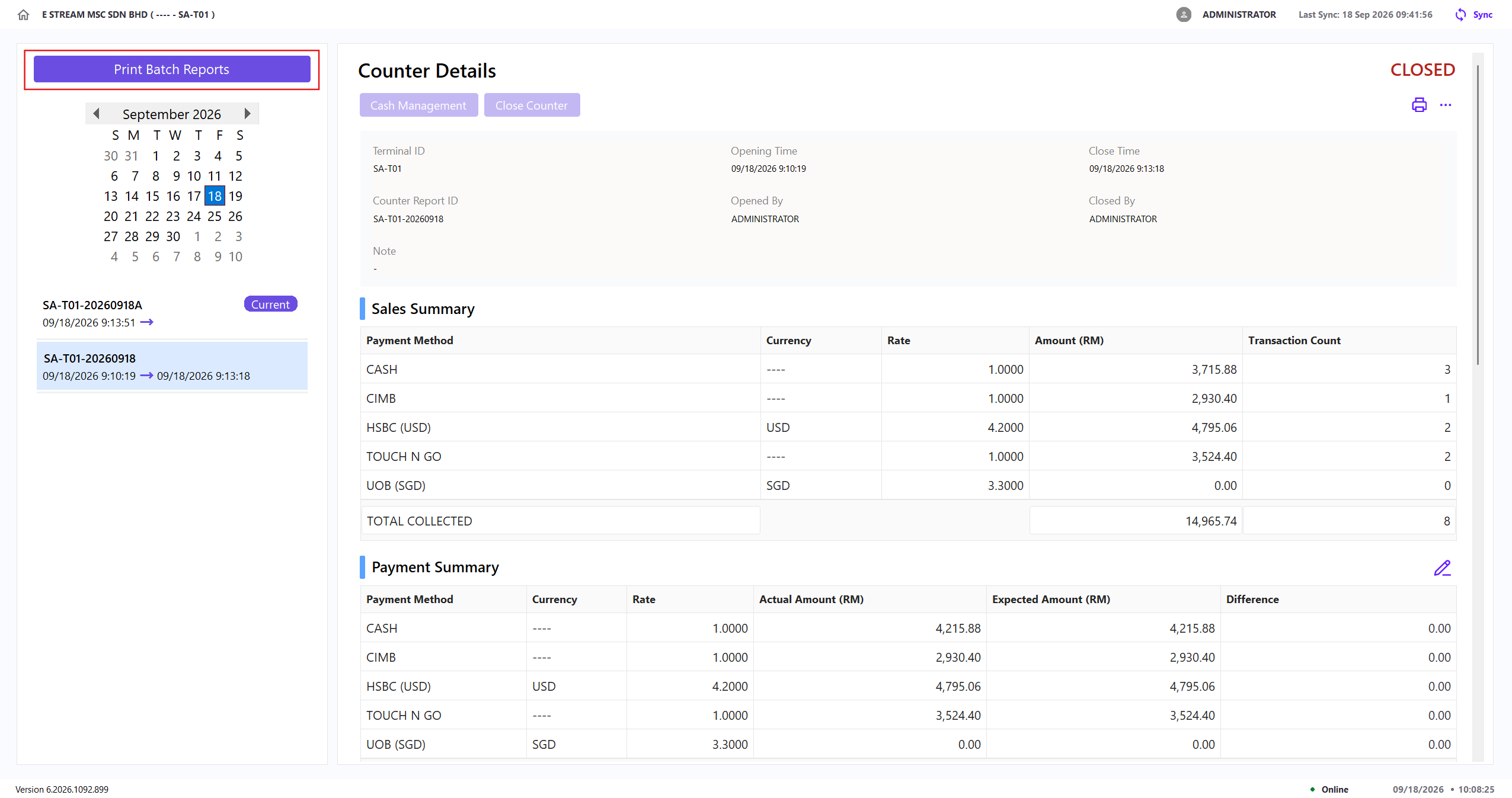
-
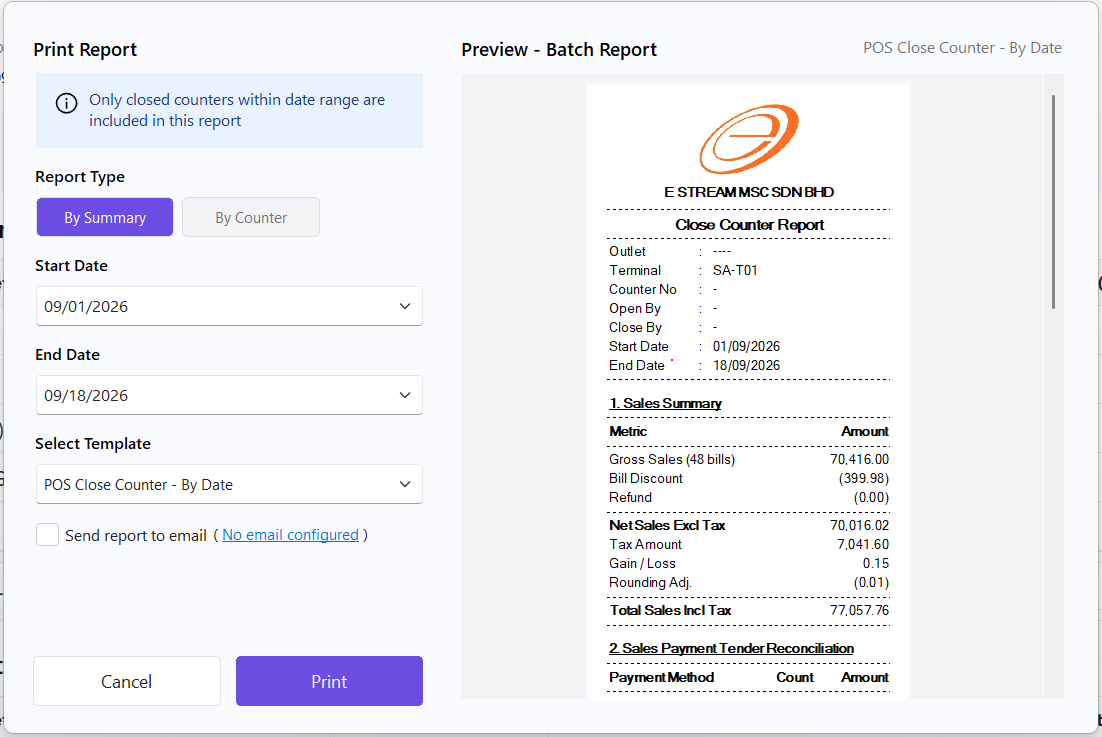
Select a Report Type:
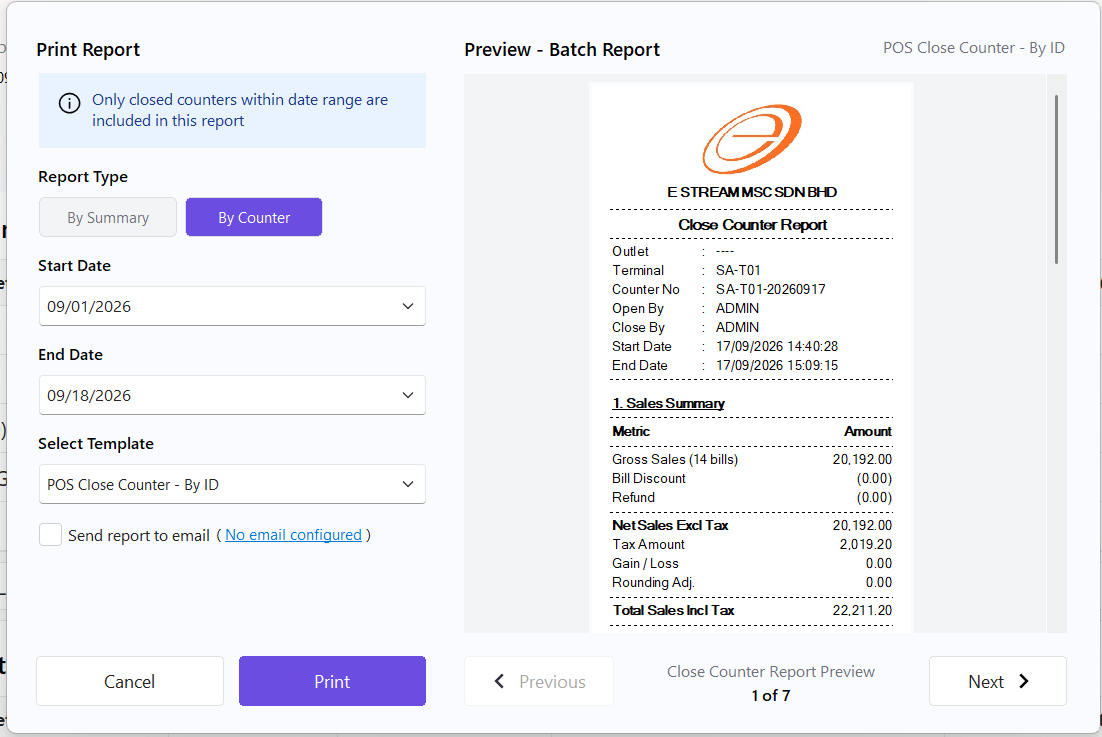
Report Type Description By Summary Consolidates all counters within the date range into a single combined report By Counter Generates an individual close counter report for each counter within the date range, viewable one by one -
Select the Start Date and End Date
-
Select a Template (e.g.,
POS Close Counter - By Date) -
(Optional) Check Send Report to Email to email the reports. This requires an email to be configured first
-
A preview of the report is shown on the right
-
For By Summary, the preview shows the combined totals across all counters in the range
-
For By Counter, the preview shows each counter's report individually. Use Previous and Next to navigate between counters, indicated by the page counter (e.g., 1 of 7)
-
-
Click Print to generate the report(s), or Cancel to discard the selection
Cash Management
-
Click Cash Management
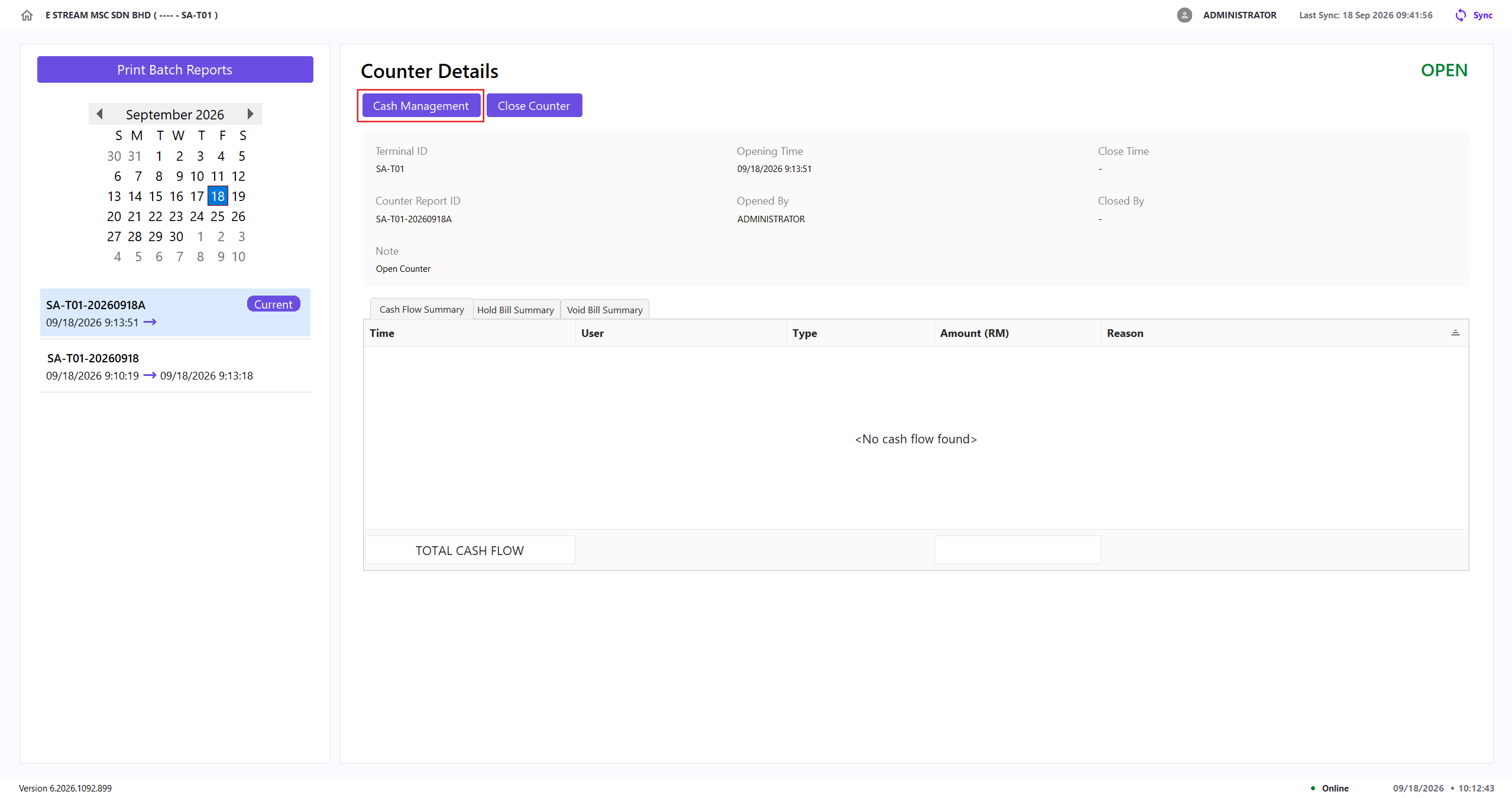
-
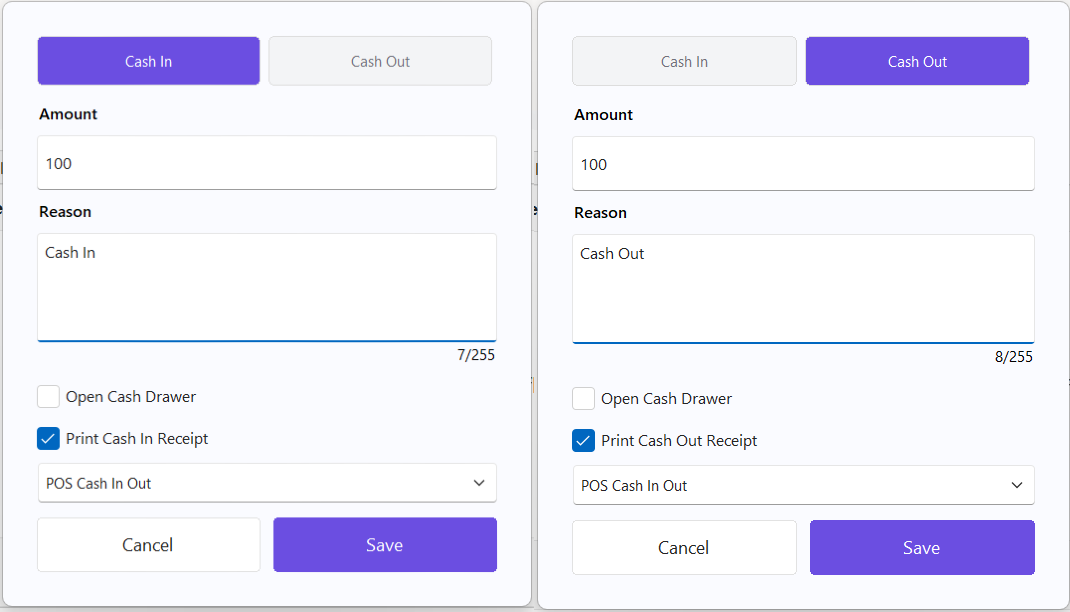
Select Cash In / Cash Out using the toggle at the top of the form
-
Enter the Amount
-
(Optional) Enter the Reason
-
(Optional) Check Open Cash Drawer to trigger the physical cash drawer to open
-
(Optional) Check Print Cash In / Out Receipt and select a template (e.g.,
POS Cash In Out) -
Click Save to confirm the transaction, or Cancel to discard it
-
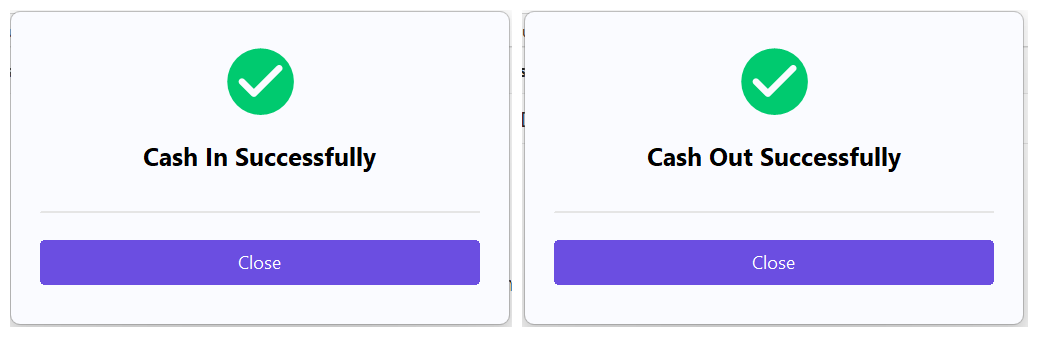
Once saved, a success message is displayed:
Close Counter
-
Click Close Counter
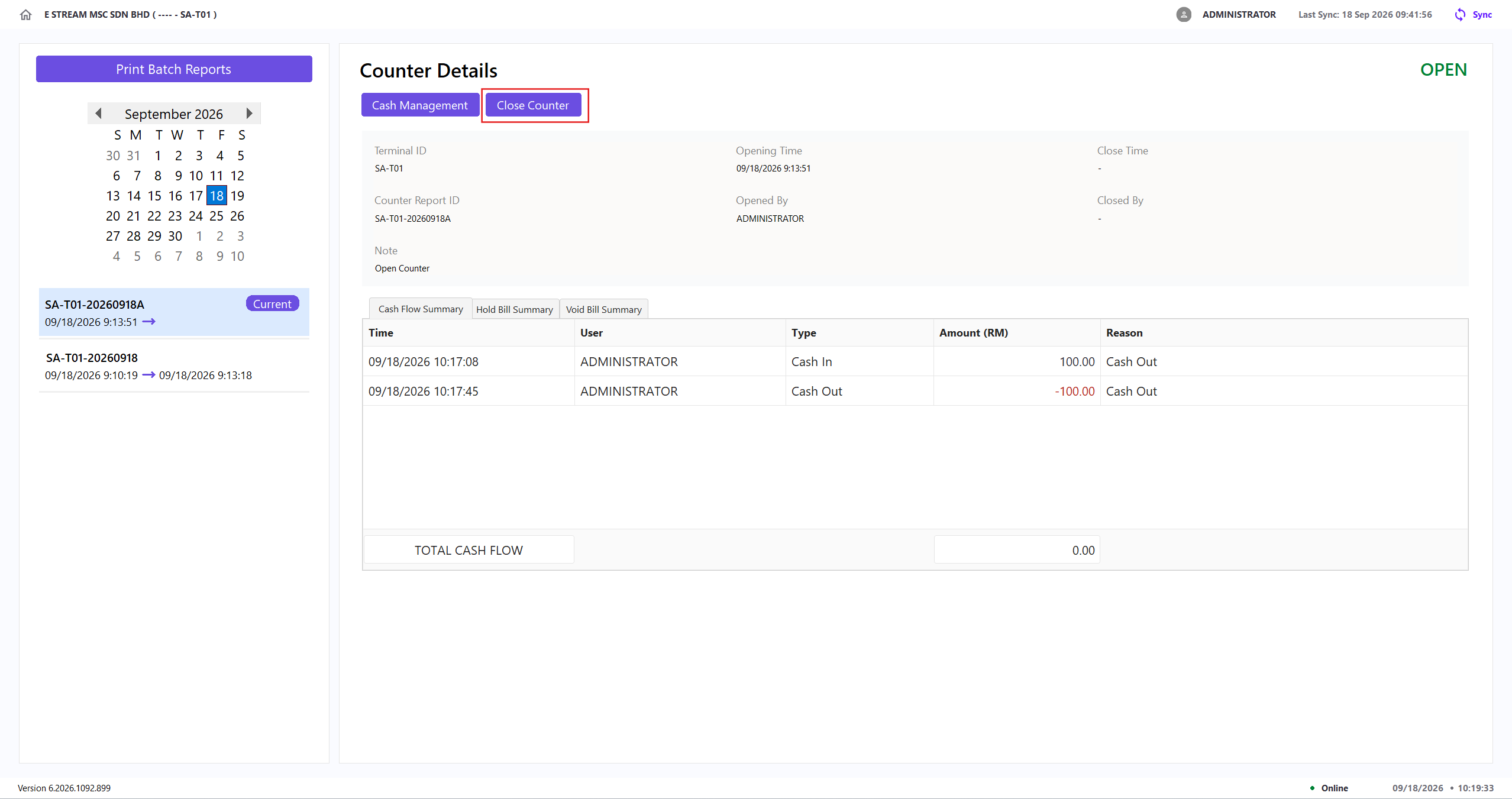
-
Count the amounts received and adjust the Actual (RM) amount for each payment method
-
(Optional) Check Send Report to Email to email the report. This requires an email to be configured first
-
(Optional) Check Print Closing Summary Report and select a template (e.g.,
POS Close Counter - By ID) -
Click Proceed Close Counter to close the counter, or Cancel to discard it
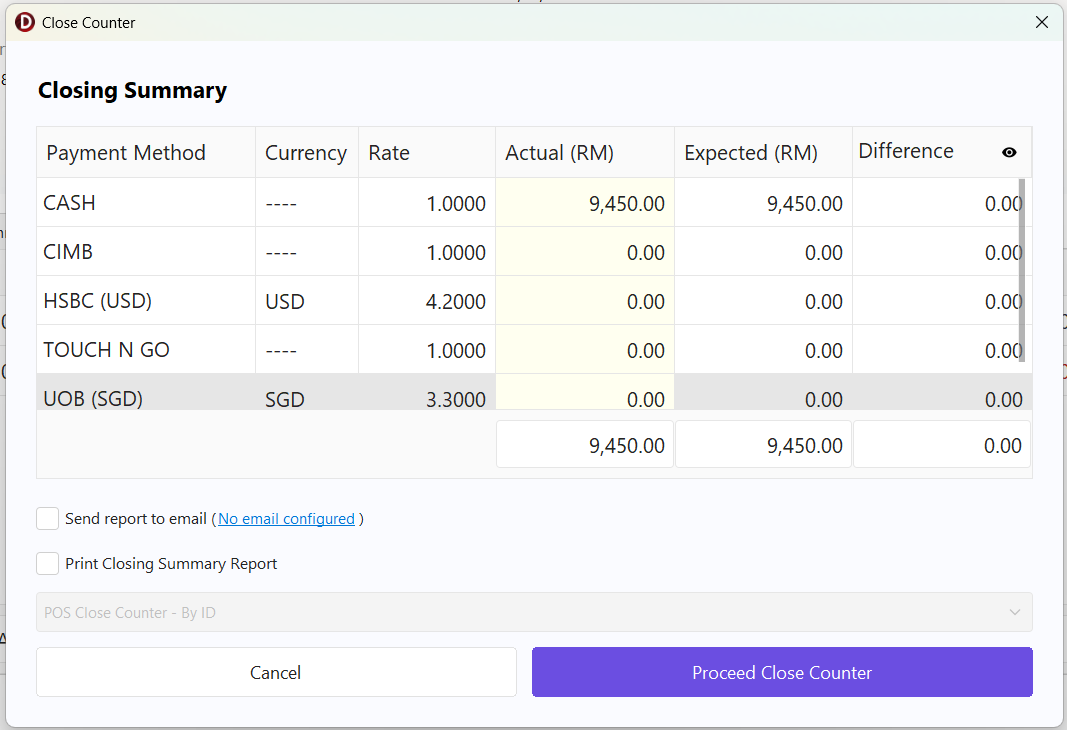
-
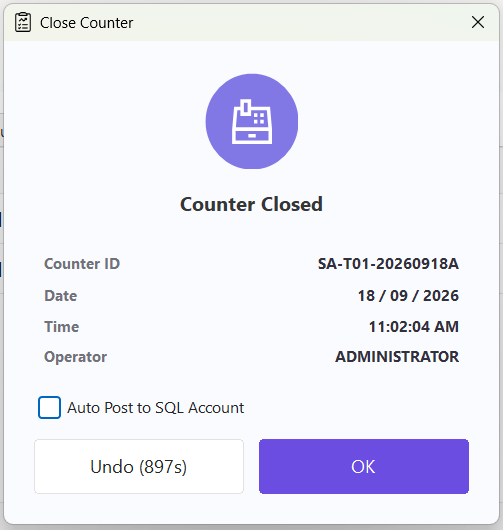
Once closed, a Counter Closed confirmation is shown with the Counter ID, Date, Time, and Operator
-
(Optional) Check Auto Post to SQL Account post the closed counter to SQL Acc automatically
-
Click OK to complete, or Undo within the countdown to reopen the counter
Print Close Counter Report
-
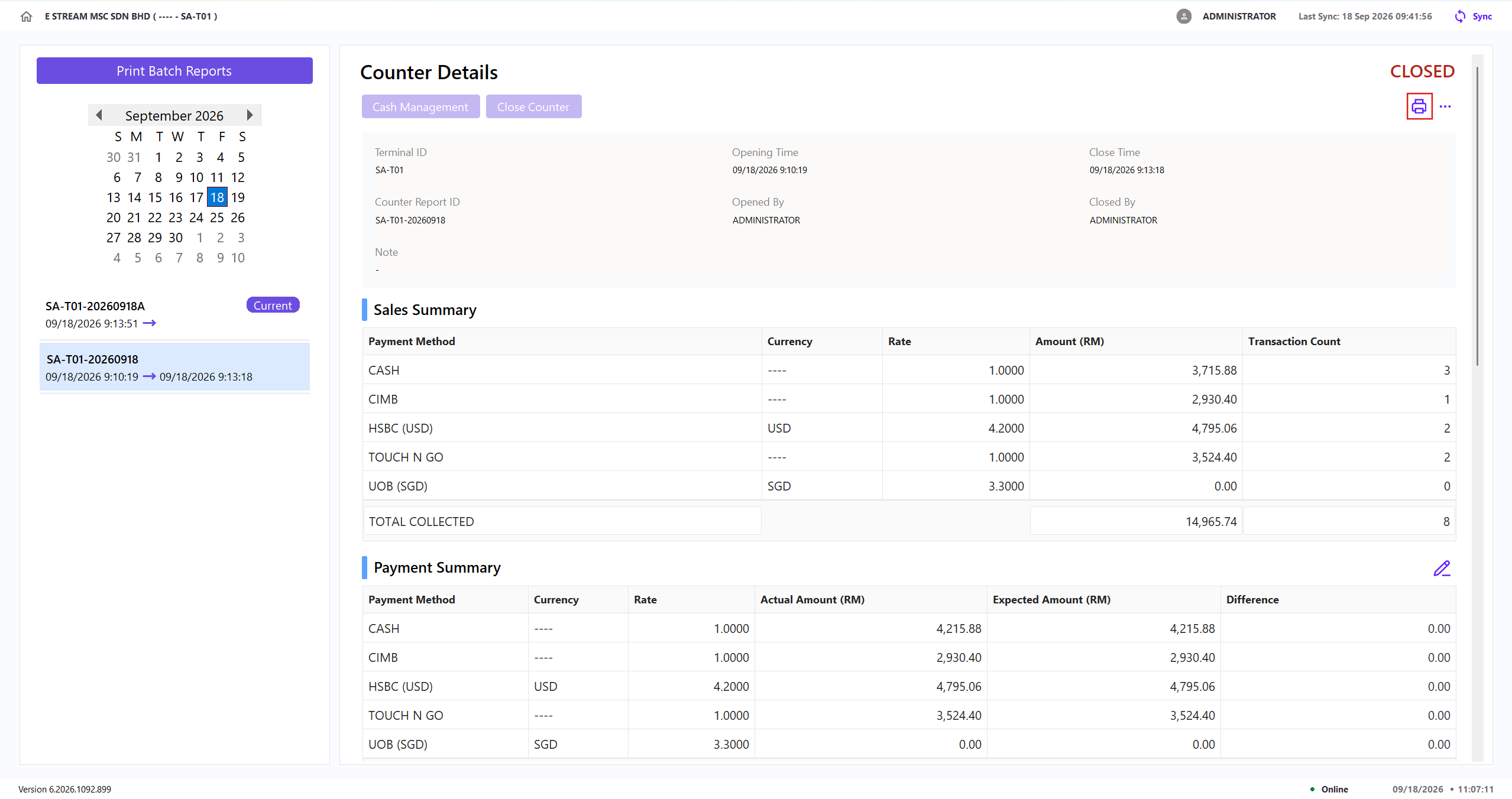
Click Print icon
-
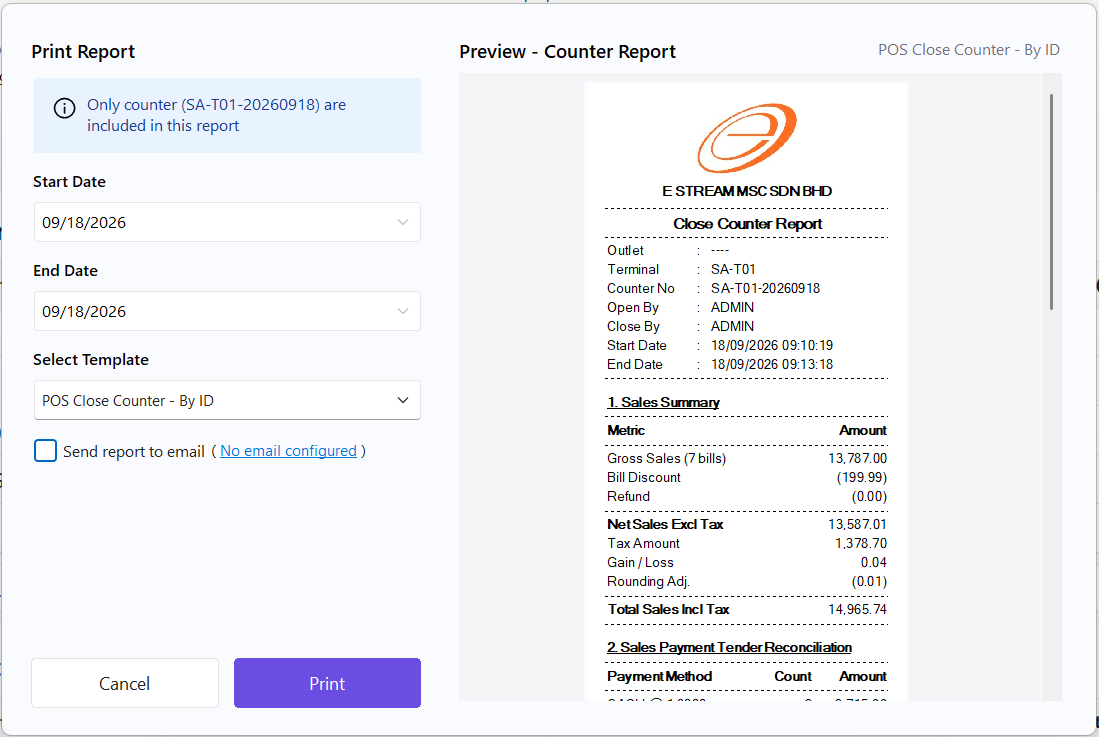
Select a Template (e.g.,
POS Close Counter - By ID) -
(Optional) Check Send Report to Email to email the report. This requires an email to be configured first
-
Click Print to generate the report, or Cancel to discard the selection
PopUp Menu
-
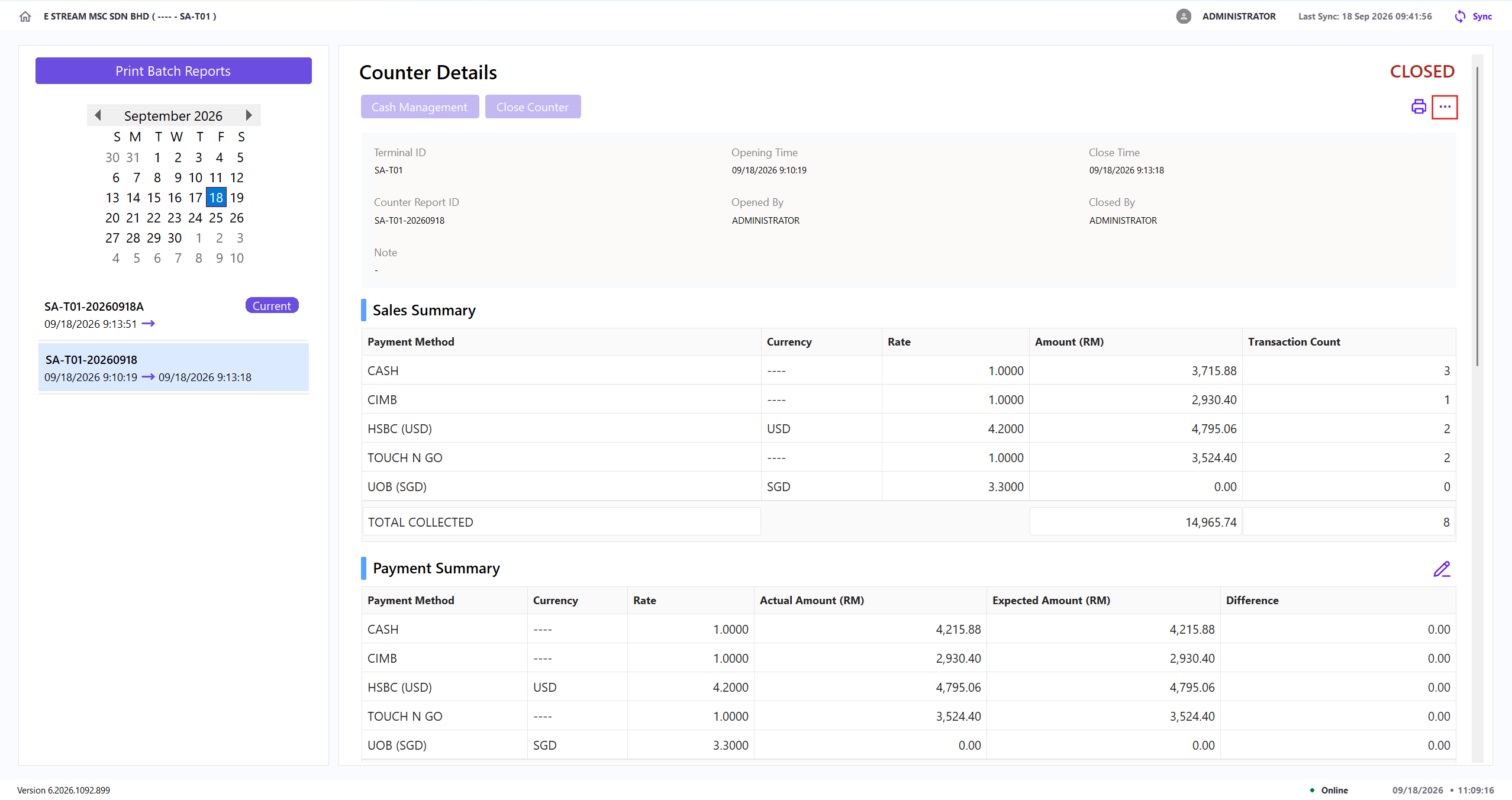
Click ⋯ (three dots) icon
-
Select one of the following actions:
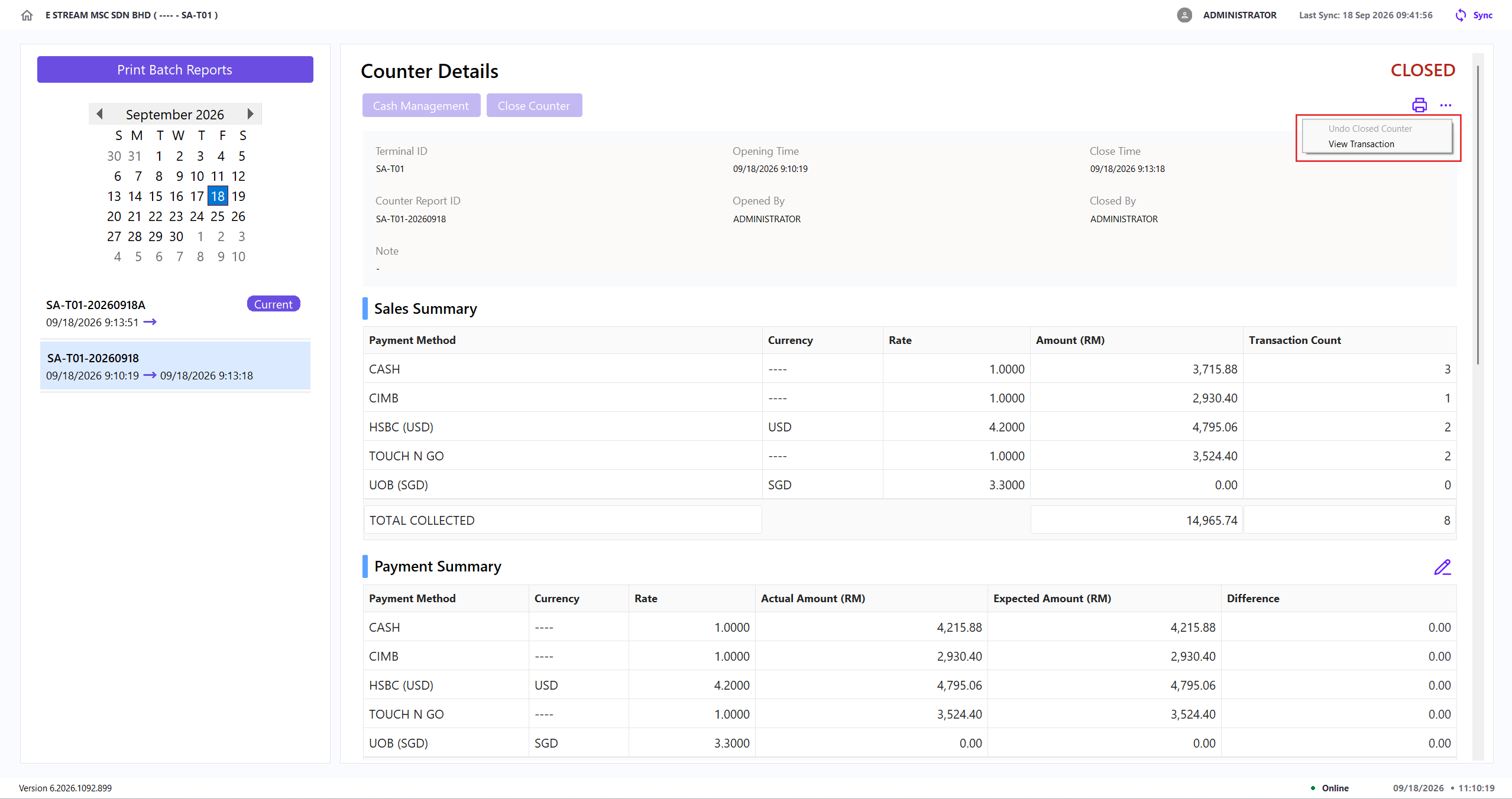
Action Description Undo Closed Counter Reopens a closed counter within the configured timeout window. It is unavailable after the counter has been posted to SQL Account View Transaction Opens the Transaction page and displays the transactions in the selected counter
Edit Payment Summary Actual Amount
-
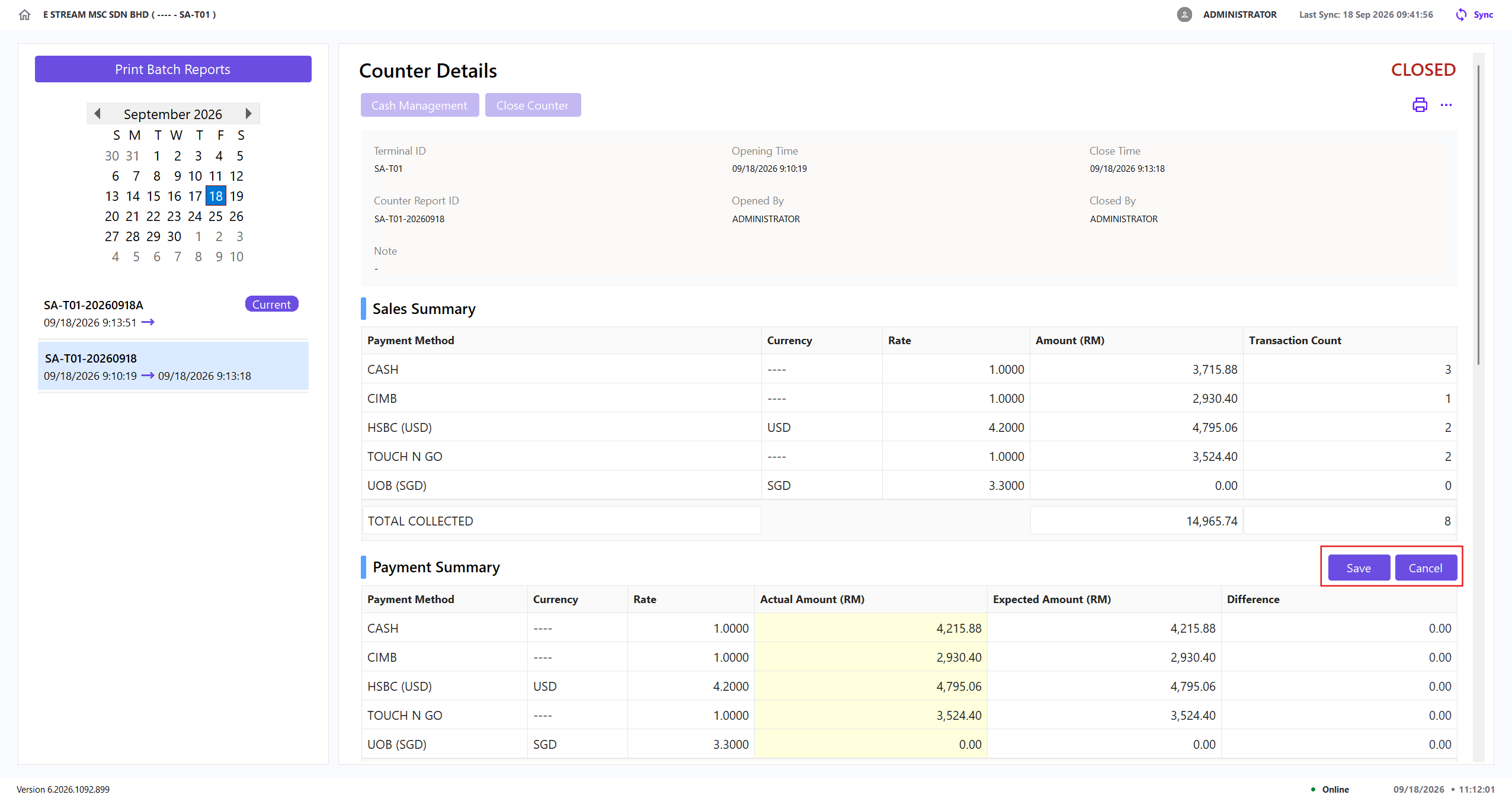
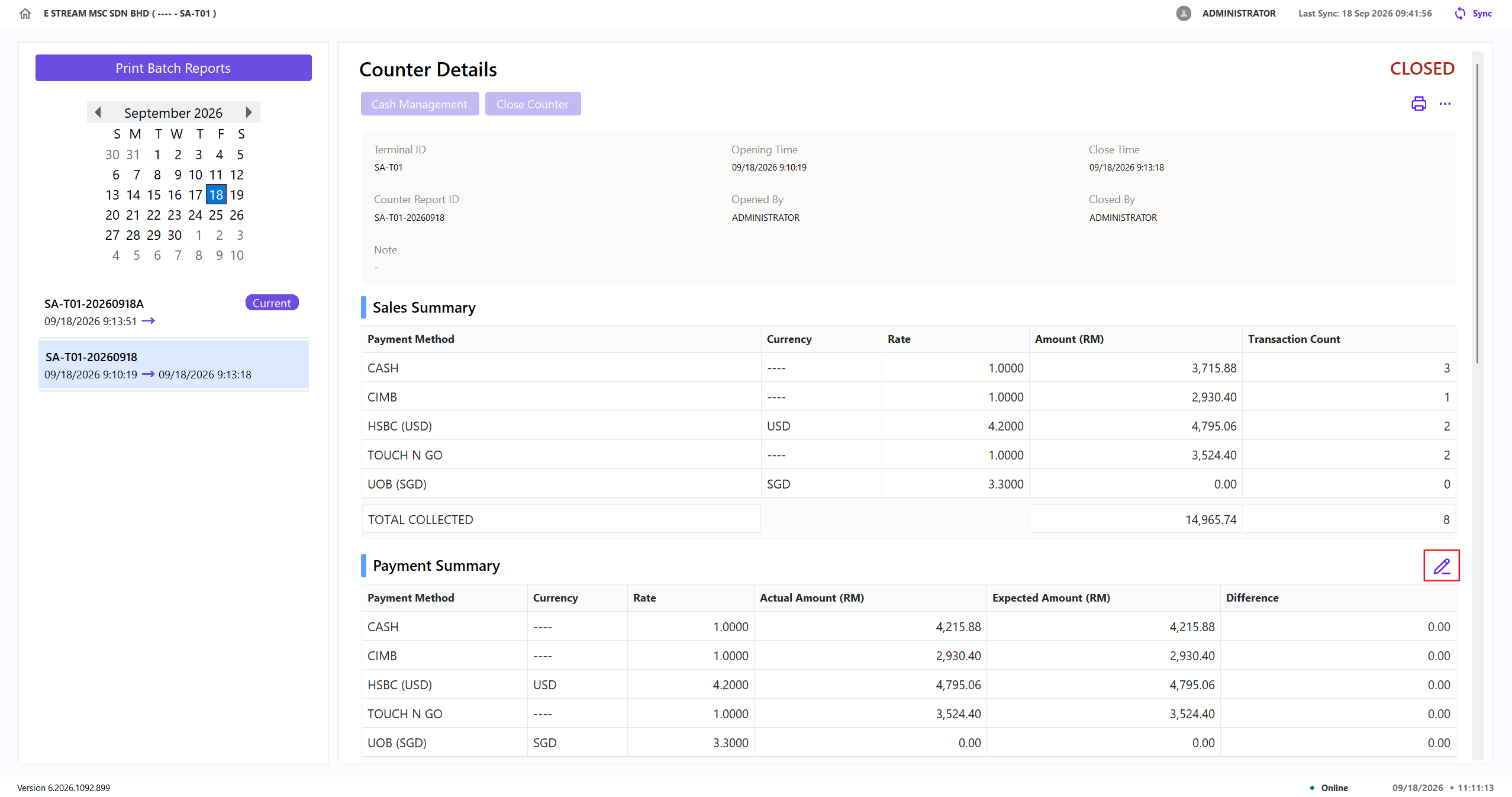
Click Edit icon
-
Adjust the Actual (RM) amount for the relevant payment method
-
Click Save to update the actual amounts or Cancel to discard the changes