Others
This page covers the actions on the XPOS home screen that help you secure the terminal or end your current XPOS session.
Lock Counter
Use Lock Counter when you need to step away from the terminal without logging out. The counter remains secure until the current user unlocks it.
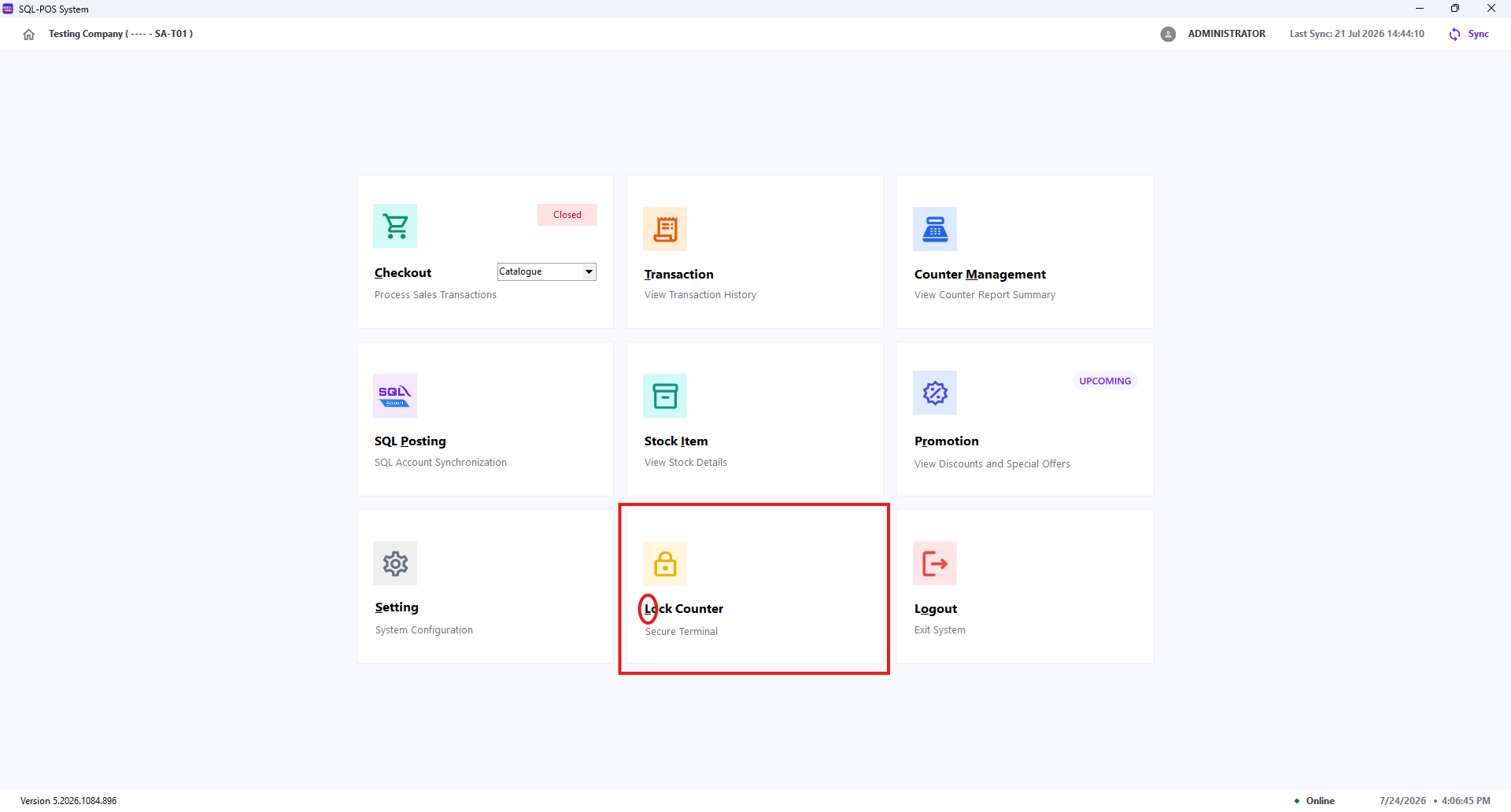
- On the XPOS home screen, select Lock Counter or press L.
- XPOS displays the Counter Locked screen.
- To resume work, click Unlock or press Enter.

- Enter the password of the user currently signed in.
- Click Confirm or press Enter.
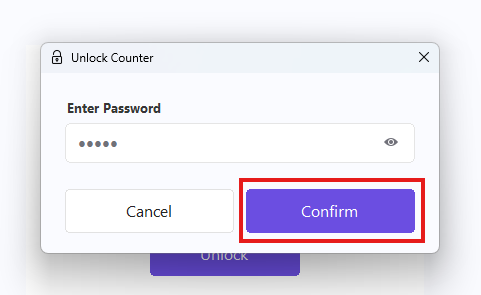
If the password is incorrect, XPOS displays an error message and keeps the counter locked. Press Esc in the unlock window to cancel and return to the locked screen.
Lock the counter whenever the terminal will be unattended, even for a short time.
Logout
Use Logout when the current user has finished using XPOS and another user needs to sign in.
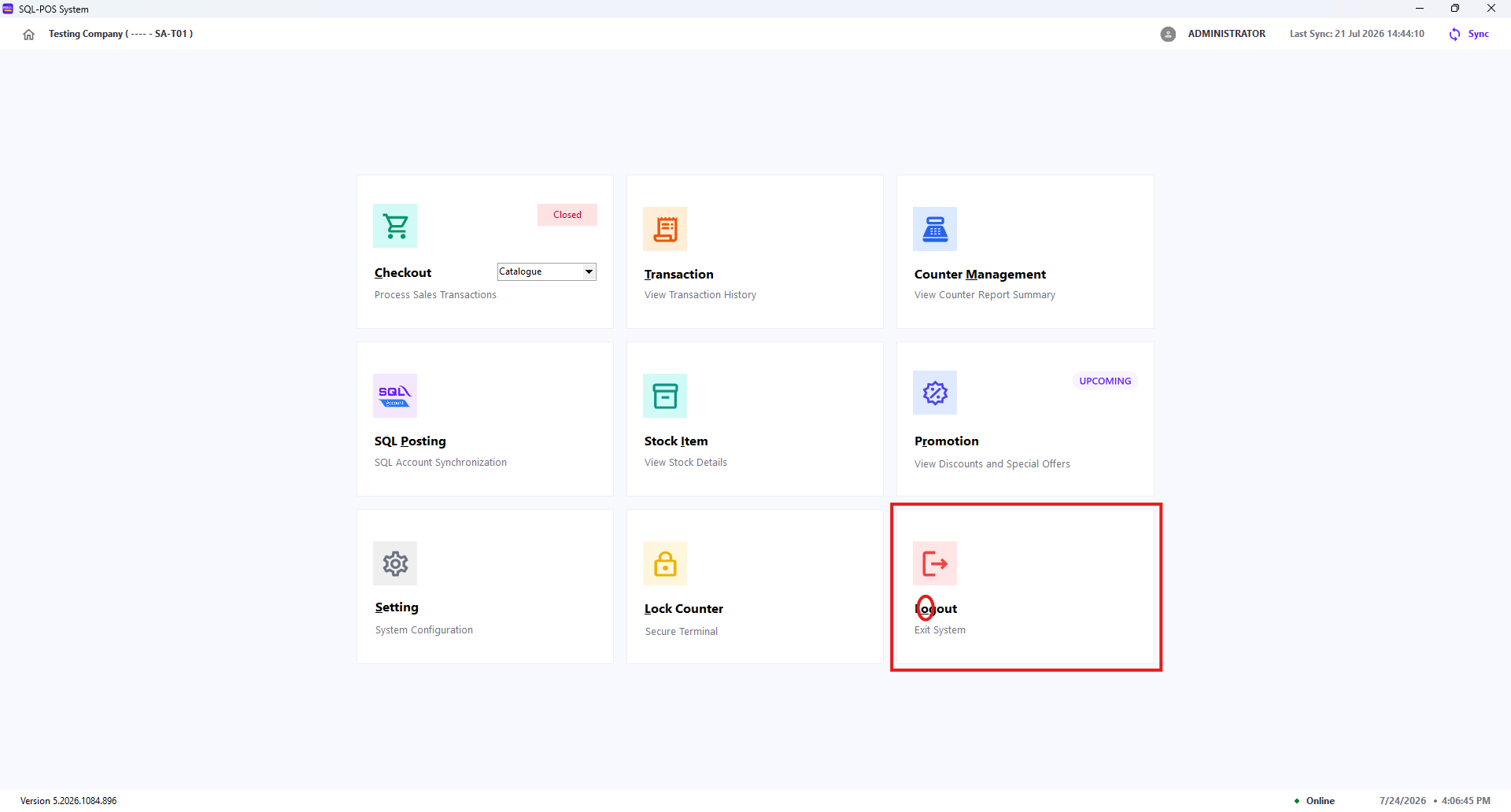
- On the XPOS home screen, select Logout or press O.
- In the confirmation window, select Logout to end the session.

Select Cancel or press Esc to keep the current session active. Press Enter to confirm logout.
Logging out clears the current user's access rights from the terminal. The next user must sign in before continuing.