SQL Posting
Use SQL Posting to send completed XPOS counter sessions to SQL Account. In the current Per Counter posting method, all transactions in a selected counter session are consolidated and posted together.
Before You Start
- Make sure the counter session you want to post has been closed.
- Review the counter’s transactions and total before posting.
- Confirm that your SQL Account connection and posting setup have been completed.
note
You need the Post to SQL Account access right to open SQL Posting.
Open SQL Posting
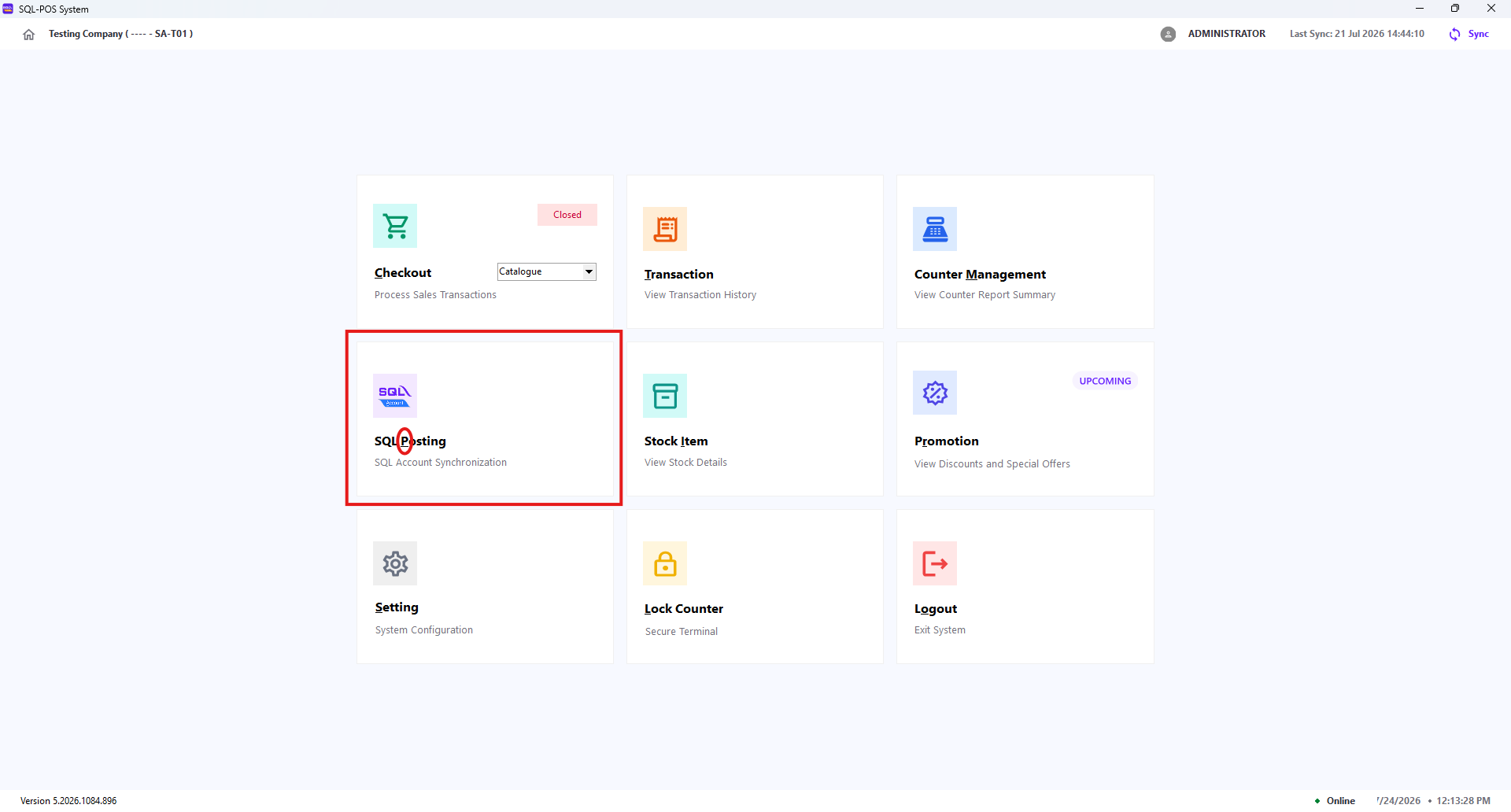
From the XPOS home screen, select SQL Posting. You can also press P on the keyboard.
Review Counter Sessions
- Select the required Start Date and End Date. The list refreshes automatically when either date is changed.
- Current Posting Method only support Per Counter.
- Review the counter sessions displayed in the table.
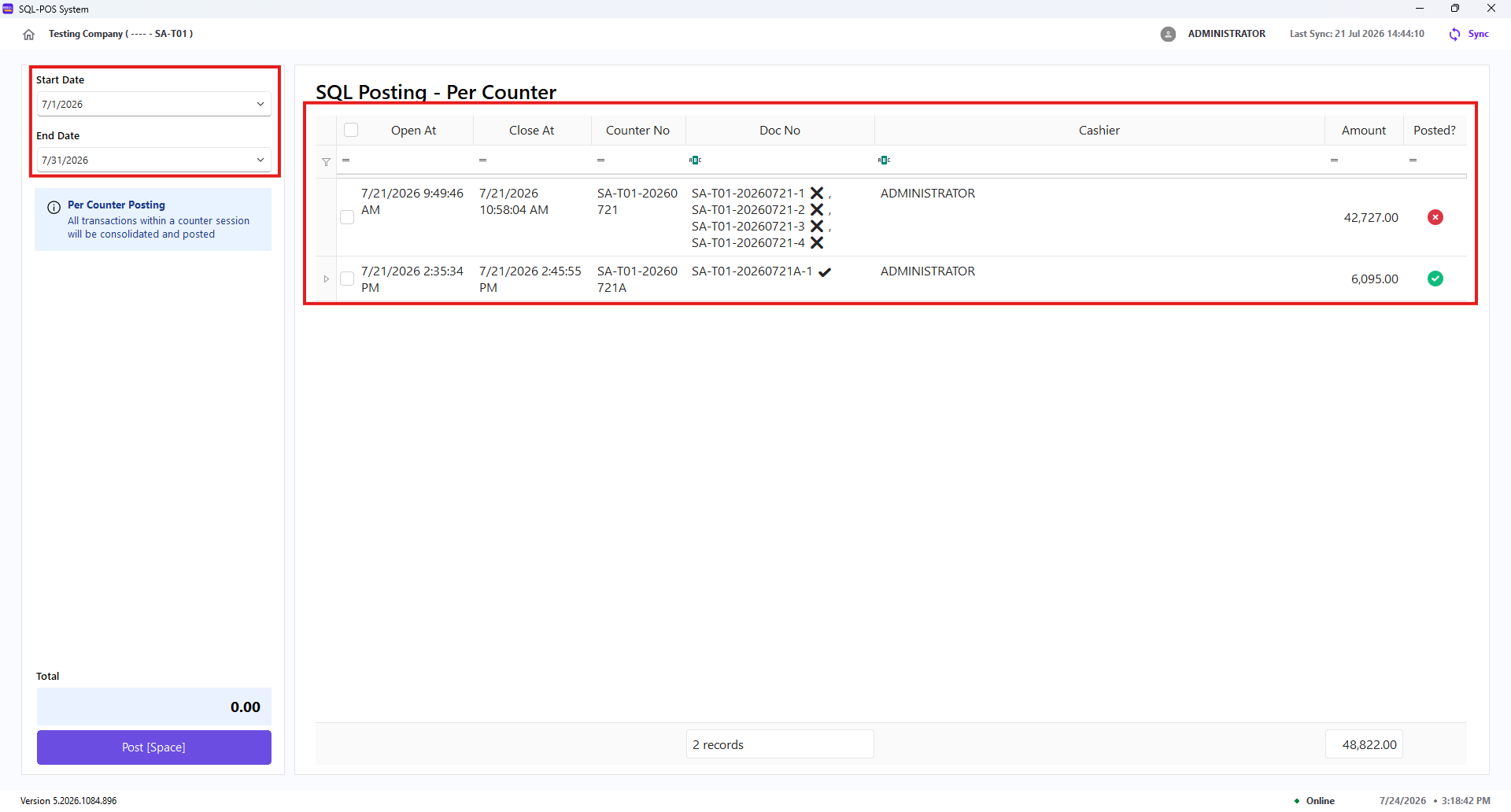
| Field | Description |
|---|---|
| Open At | Date and time the counter session was opened. |
| Close At | Date and time the counter session was closed. |
| Counter No | The counter-session number. |
| Doc No | The document number created for the counter session. |
| Cashier | The cashier associated with the session. |
| Amount | Total amount for the counter session. |
| Posted? | Shows whether the counter session has already been posted to SQL Account. |
Select one or more sessions in the table. The Total area shows the number of selected counters and their combined amount.
tip
Use the table filters to find a particular counter, cashier, or document number before selecting the sessions to post.
Post to SQL Account
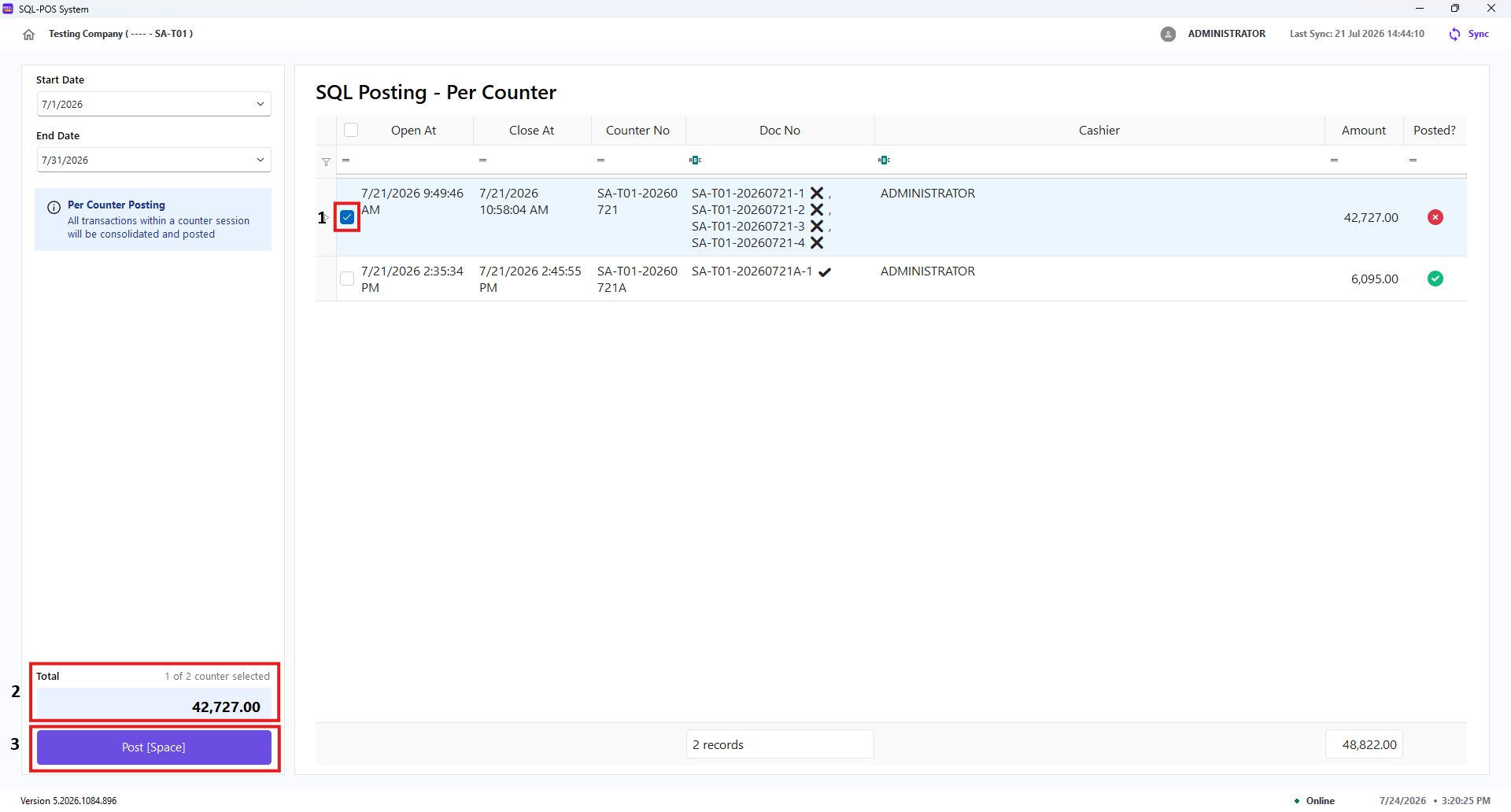
- Select the counter sessions to post.
- Verify the selected count and total amount.
- Click Post or press Space.
- Select Yes in the Confirm to Post? prompt.

- Wait for the progress screen to finish. Do not close XPOS while posting is in progress.

- Review the posting result:
- Posting completed successfully shows the number of successful and failed sessions.

- Posting completed with errors shows the successful and failed count, followed by error details. Correct the reported issue before trying again.

- Posting completed successfully shows the number of successful and failed sessions.
After a successful posting, the session's Posted? status changes to Yes.
Reposting and Common Messages
- Sessions already marked Yes are skipped when posting a mixed selection of posted and unposted sessions.
- If every selected session has already been posted, XPOS displays a message that the selected records have been posted.
- If no new session is posted, XPOS displays No new records were posted.
- The End Date cannot be earlier than the Start Date. If this occurs, XPOS restores the date range to the current month.